SQL Server Replication Setup Guide with sqlcmd and DbSchema
For the person who has to put a second SQL Server instance behind the reports and keep its copy of the tables current.
On this page
Reports and orders hit the same tables on the same instance, and the reports lose. Moving them to a second server means keeping a copy of the data there and keeping it current, which is what SQL Server replication does: it copies and distributes data and database objects from one database to another, then synchronizes between the databases to keep them consistent. The whole configuration is a handful of system stored procedures, and you can run every one of them from sqlcmd.
Publisher, Distributor and Subscriber
Replication borrows the vocabulary of magazine publishing, and the three server roles come from it. The Publisher is the database instance that makes data available to other locations. The Subscriber is the instance that receives it, and depending on the replication type it can send changes back or republish them further.
Between them sits the Distributor, the instance that stores the replication-specific data for one or more Publishers. Each Publisher gets one database at the Distributor, the distribution database, which holds the replication status data, the metadata about the publication and, for some types, the queue of data on its way to the Subscribers. One instance usually plays both parts, which the documentation calls a local Distributor; put the Distributor on its own instance and it becomes a remote Distributor, which is worth doing when the queue and its agents would compete with the Publisher's own workload.
Publications, articles and filters
An article identifies one database object inside a publication, and a publication can carry articles of different kinds: tables, views, stored procedures, other objects. A publication is a collection of articles from a single database, so the articles you group into one travel to the Subscriber as a unit. A subscription is the request for a copy of a publication, and it comes in two shapes: a push subscription, whose Distribution Agent runs at the Distributor, and a pull subscription, whose agent runs at the Subscriber.
Tables published as articles can be filtered. A row filter is a WHERE clause passed as @filter_clause to sp_addarticle with the keyword WHERE omitted, and a column filter drops columns from the article. Both cut what crosses the network, which matters most for the Subscriber that only needs last month's orders.
Which of the four types fits the job
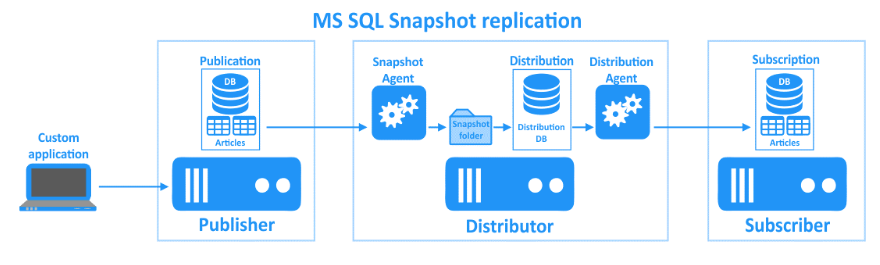
Snapshot replication sends the entire data set as it stands at one moment. It provides the initial data set for transactional and merge replication, and it is also the right choice on its own when a complete refresh of the data is what you want.
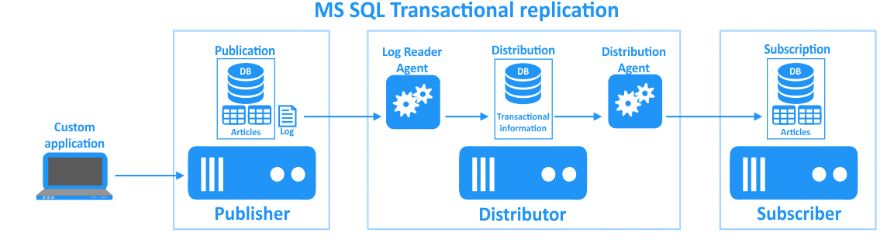
Transactional replication is the server-to-server workhorse, used where throughput has to stay high: improving scalability and availability, data warehousing and reporting, integrating data from several sites, integrating heterogeneous data, and offloading batch processing. For the reporting server in the opening paragraph, this is the type to configure, and the rest of this article sets it up.
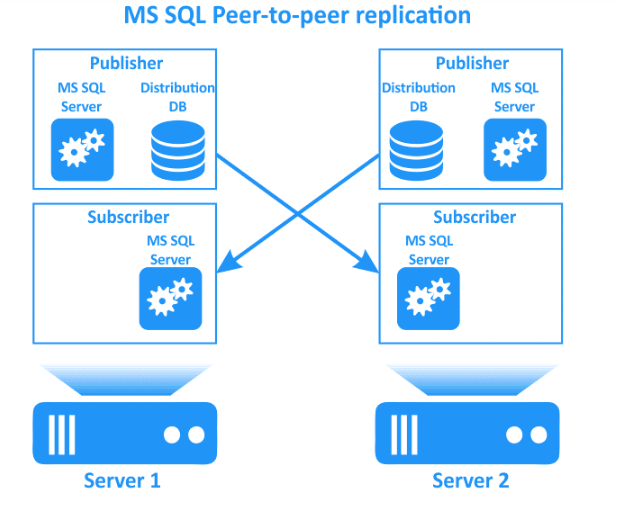
Peer-to-peer replication is transactional replication in which every node publishes and subscribes. It has its own set of publication settings: @enabled_for_p2p requires @independent_agent to be true, @repl_freq to be continuous, @allow_queued_tran and @allow_sync_tran to be false, and @allow_initialize_from_backup to be true.
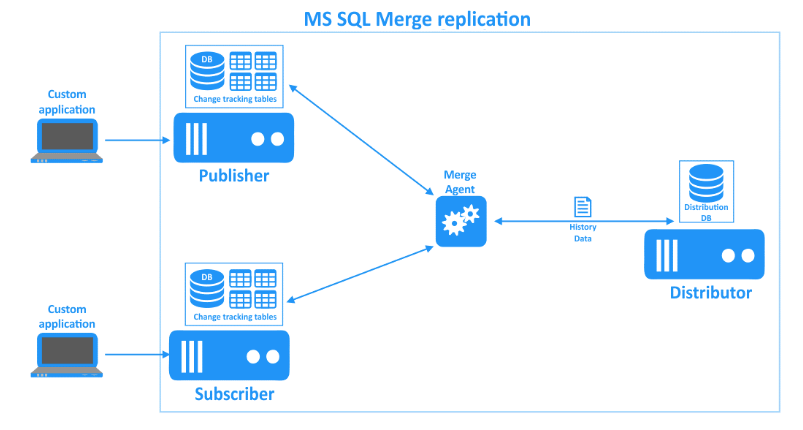
Merge replication is designed for mobile applications and distributed server applications where the same row can change in two places: exchanging data with mobile users, point of sale applications, and integration of data from several sites. Conflict resolution is part of the deal, so reach for merge only when changes really do arrive from more than one node.
The permissions each step needs
Marking a server as a Distributor is the most privileged step: only members of the sysadmin fixed server role can execute sp_adddistributor. Creating the publication, adding articles to it and adding subscriptions each require membership in sysadmin or in the db_owner fixed database role of the publication database. Pull subscriptions are the exception: a user whose login is in the publication access list can execute sp_addsubscription for one.
One more thing about push subscriptions is worth knowing before you run the script. When a member of sysadmin creates one, the Distribution Agent job is created implicitly and runs under the SQL Server Agent service account. Microsoft recommends calling sp_addpushsubscription_agent yourself with @job_login and @job_password for an agent-specific Windows account, which is what the script below does.
Transactional replication, step by step in sqlcmd
Every batch below goes through one connection to the Publisher. Omit -P: sqlcmd calls a password on the command line insecure and asks for it instead:
sqlcmd -S publisher01 -d master -U sa
Type GO on a line of its own to send each batch. The first two procedures run at the Distributor on master and create the distribution database:
EXEC sp_adddistributor @distributor = N'publisher01';
GO
EXEC sp_adddistributiondb @database = N'distribution', @security_mode = 1;
GO
The Publisher has to be registered against that distribution database, from the distribution database itself:
USE distribution;
GO
EXEC sp_adddistpublisher @publisher = N'publisher01',
     @distribution_db = N'distribution',
     @security_mode = 1;
GO
Now switch to the publication database. Enable it for publishing, create the Log Reader Agent job that transactional replication needs, and create the publication with sp_addpublication:
USE sales;
GO
EXEC sp_replicationdboption @dbname = N'sales', @optname = N'publish', @value = N'true';
GO
EXEC sp_addlogreader_agent @job_login = N'DOMAIN\replagent', @job_password = N'<password>',
     @publisher_security_mode = 1;
GO
EXEC sp_addpublication @publication = N'sales_tran',
     @sync_method = N'native',
     @repl_freq = N'continuous',
     @status = N'active',
     @allow_push = N'true',
     @independent_agent = N'true';
GO
EXEC sp_addpublication_snapshot @publication = N'sales_tran',
     @job_login = N'DOMAIN\replagent', @job_password = N'<password>',
     @publisher_security_mode = 1;
GO
Three of those values are the defaults, spelled out because they decide how the first synchronization behaves. @sync_method = N'native' produces native-mode bulk copy output of the tables. @repl_freq = N'continuous' keeps the Log Reader Agent running instead of scheduling it. @status is the one that is not a default: it ships as inactive, which lets Subscribers subscribe without their subscriptions being processed, and active makes the publication data available immediately.
A publication with no articles replicates nothing, so add the tables. sp_addarticle runs at the Publisher on the publication database as well:
EXEC sp_addarticle @publication = N'sales_tran',
     @article = N'Orders',
     @source_object = N'Orders',
     @source_owner = N'dbo',
     @type = N'logbased';
GO
The subscription is created at the Publisher too, which is the step most scripts get wrong by running it on the Subscriber. @subscriber names the receiving instance, @destination_db the database that receives the rows, and @sync_type = N'automatic' transfers the schema and the initial data before any change is applied:
EXEC sp_addsubscription @publication = N'sales_tran',
     @subscriber = N'reporting01',
     @destination_db = N'sales_replica',
     @subscription_type = N'push',
     @sync_type = N'automatic',
     @article = N'all',
     @update_mode = N'read only';
GO
EXEC sp_addpushsubscription_agent @publication = N'sales_tran',
     @subscriber = N'reporting01',
     @subscriber_db = N'sales_replica',
     @job_login = N'DOMAIN\replagent', @job_password = N'<password>';
GO
@update_mode = N'read only' is the default and means what it says: changes made at the Subscriber never travel back to the Publisher. The alternatives, sync tran and queued tran, turn the subscription into an updating one, immediately or through a queue.
Checking the replicated rows in DbSchema
The rows arrive or they do not, and a query against the subscription database settles it. Open Connect to Database in DbSchema, choose SQL Server, enter the Subscriber host, port, database and credentials, and click Connect. DbSchema reverse-engineers sales_replica and draws its tables and foreign keys as a diagram, which is the fastest way to see whether every article actually landed. Nothing here writes to the Subscriber: the diagram and its layout live in the DbSchema model file on your computer.
Open the SQL Editor from the Editors menu, type a count against the replicated table, and click Execute Query:
SELECT COUNT(*) AS replicated_rows FROM dbo.Orders;
For a check that goes further than a count, open the Relational Data Editor and click a row in the parent table. Every child pane refilters to the rows that match it, so you can walk an order into its lines and confirm that the filtered articles carried the children as well as the parents. Connecting, reverse-engineering, the diagram and the SQL Editor are in the free Community Edition; the Relational Data Editor is in Pro.
Set the Distributor up once, keep the publication script in your repository, and adding the next table to the reporting server is one sp_addarticle call plus a new snapshot. Download DbSchema at https://dbschema.com/download.html, connect to the subscription database, and compare its diagram with the publication database before you hand the reporting server to anyone. The Pro edition adds the Relational Data Editor and schema synchronization for that comparison.









