Show Tables in PostgreSQL – psql, SQL Queries, and Schema Filters | DbSchema
Table of Contents
- What “show tables” means in PostgreSQL
- Version notes
- Connect to PostgreSQL first
- Show tables in psql
- Show tables with SQL queries
- Show related objects and schemas
- Describe a specific table
- Show tables visually in DbSchema
- FAQ
- Conclusion
If you come from MySQL, one of the first PostgreSQL differences you notice is that there is no SHOW TABLES; SQL statement. In PostgreSQL, you usually list tables with psql meta-commands such as \dt, or with SQL queries against information_schema and pg_catalog.
Once you know the PostgreSQL equivalents, you can do more than just list names. You can filter by schema, include table size, inspect a specific table definition, and move into a visual workflow with DbSchema when you need diagrams, documentation, or JDBC-based browsing.
What “show tables” means in PostgreSQL
In practice, "show tables in PostgreSQL" usually means one of these tasks:
- list user tables in the current schema
- list tables in a specific schema
- list tables across all schemas
- include table size or owner information
- inspect the structure of one table after you find it
The best command depends on whether you are in psql, an IDE SQL editor, or a GUI such as DbSchema.
Version notes
- PostgreSQL has never supported a MySQL-style
SHOW TABLES;statement. \dt,\dt+, and\darepsqlmeta-commands, so they work inpsqlbut not in JDBC query windows.information_schema.tablesandpg_catalog.pg_tablesqueries work across modern PostgreSQL versions and are the safest choice for scripts.- Partitioned tables may appear separately from plain tables in PostgreSQL metadata, so
pg_catalogqueries are often better when you also want storage details.
Connect to PostgreSQL first
Before listing tables, connect to the database:
psql -U postgres -d database_name
Inside psql, you can list databases with:
\l
Then connect to the one you want:
\c database_name
If you are just getting started, see How to Create a Database in PostgreSQL and Essential PostgreSQL Commands.
Show tables in psql
List tables in the current search path
\dt
Typical output:
| Schema | Name | Type | Owner |
|---|---|---|---|
| public | customers | table | postgres |
| public | orders | table | postgres |
| public | products | table | postgres |
If \dt returns no rows, your tables may be in another schema. In that case, either use a schema-qualified pattern or change search_path.
List tables with more detail
\dt+
The + variant includes extra details such as table size, persistence, and access method. It is the fastest way to answer "which table is the biggest?" without writing SQL.
List tables from all schemas
\dt *.*
List tables from a specific schema
\dt sales.*
Filter by table name pattern
\dt public.order*
Include PostgreSQL system tables
\dtS
This is useful when you are debugging extensions or want to compare user tables with catalog objects.
Show tables with SQL queries
Use information_schema
information_schema is portable and clear when you want a standard SQL view of metadata:
SELECT table_schema,
       table_name
FROM information_schema.tables
WHERE table_type = 'BASE TABLE'
  AND table_schema NOT IN ('pg_catalog', 'information_schema')
ORDER BY table_schema, table_name;
This is usually the cleanest SQL query for listing only user tables.
Show tables in the current schema only
SELECT table_name
FROM information_schema.tables
WHERE table_schema = current_schema()
  AND table_type = 'BASE TABLE'
ORDER BY table_name;
Use pg_catalog for PostgreSQL-specific details
If you want PostgreSQL-native metadata, query pg_catalog.pg_tables:
SELECT schemaname,
       tablename,
       tableowner
FROM pg_catalog.pg_tables
WHERE schemaname NOT IN ('pg_catalog', 'information_schema')
ORDER BY schemaname, tablename;
Show tables with size information
SELECT n.nspname AS table_schema,
       c.relname AS table_name,
       pg_size_pretty(pg_total_relation_size(c.oid)) AS total_size
FROM pg_class c
JOIN pg_namespace n
  ON n.oid = c.relnamespace
WHERE c.relkind IN ('r', 'p')
  AND n.nspname NOT IN ('pg_catalog', 'information_schema')
ORDER BY pg_total_relation_size(c.oid) DESC;
Use this query when you want to list tables and immediately spot the largest ones. It is a good follow-up before archiving data, adding indexes, or reviewing storage in DbSchema.
Show related objects and schemas
Once you know the table commands, these are the next most useful psql shortcuts:
| Object type | psql command |
|---|---|
| Views | \dv |
| Indexes | \di |
| Sequences | \ds |
| Schemas | \dn |
These commands are helpful when you are exploring an unfamiliar database and want to confirm whether an object is a table, a view, or something else.
For schema-focused tutorials, see List All Schemas in PostgreSQL, Create Table in PostgreSQL, and Describe Table in PostgreSQL.
Describe a specific table
Listing tables only tells you that an object exists. The next natural question is usually, "What columns does it have?"
In psql, use:
\d customers
For more detail:
\d+ customers
These commands show columns, data types, defaults, indexes, and constraints. For a deeper walkthrough, read Describe Table in PostgreSQL.
Show tables visually in DbSchema
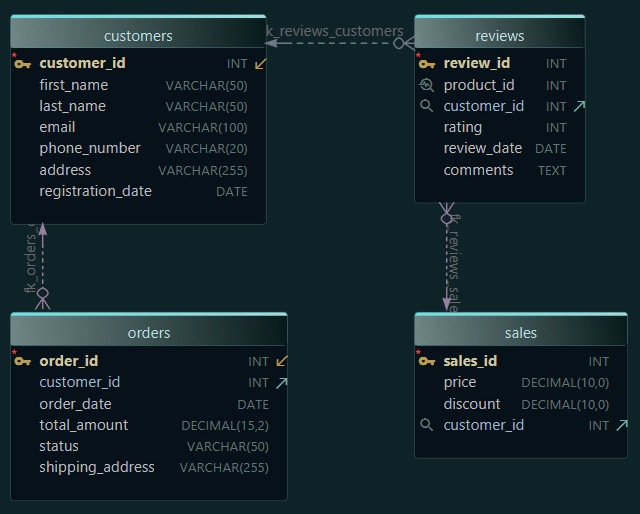
psql is great for quick inspection, but DbSchema is easier when you want to understand relationships, compare schemas, or browse objects without memorizing commands.
With DbSchema you can:
- connect through the PostgreSQL JDBC driver
- reverse-engineer the schema from the live database
- browse tables, views, and foreign keys in an interactive diagram
- inspect columns and indexes from the UI instead of switching between
\dtand\d+ - keep schema documentation together with the database model
That is especially useful when you are exploring a new database, onboarding teammates, or reviewing several schemas side by side. The connect to database, diagram, and schema documentation pages cover the workflow in more detail.
If you are ready to create new objects after exploring the schema, the next logical step is How to Create a Table in PostgreSQL.
FAQ
What is the PostgreSQL equivalent of SHOW TABLES?
The closest equivalent is \dt inside psql, or a metadata query against information_schema.tables.
How do I show tables in a specific schema?
Use \dt schema_name.* in psql or add WHERE table_schema = 'schema_name' in your SQL query.
Why does \dt show no tables?
Usually because your tables are in another schema or your current search_path does not include the schema that contains them. Try \dt *.* or query information_schema.tables.
How do I include table sizes in the result?
Use \dt+ in psql, or query pg_class together with pg_total_relation_size() as shown above.
Can I show tables in PostgreSQL without psql?
Yes. Query information_schema.tables, query pg_catalog.pg_tables, or use a GUI such as DbSchema through the PostgreSQL JDBC driver.
Conclusion
To show tables in PostgreSQL, use \dt and \dt+ when you are in psql, or query information_schema and pg_catalog when you want SQL-based metadata access. Once you know those basics, filtering by schema, checking size, and jumping into \d table_name becomes much faster.
If you prefer a visual workflow, DbSchema can reverse-engineer the database, list the tables, and show relationships in one place instead of making you jump between console commands, JDBC tools, and handwritten notes.