SQLite Create Database: CLI, Python, GUI, and DbSchema Setup
For someone starting a project on SQLite who needs the database file, the first table, and the settings that matter before any data goes in.
On this page
You type CREATE DATABASE into SQLite and it answers near "DATABASE": syntax error, because SQLite has no such statement. A SQLite database is one ordinary file, and you create it by opening a filename that doesn't exist yet: SQLite creates the file and opens it. The shell, a Python script and DbSchema all work that way:
| Where you start | What creates app.db |
|---|---|
| The sqlite3 shell | sqlite3 app.db |
| Python | sqlite3.connect("app.db") |
| DbSchema | a SQLite connection pointed at app.db |
What creating a database means in SQLite
PostgreSQL, MySQL and SQL Server run as a server process: your program sends it requests, and the server reads and writes its own data files. CREATE DATABASE is one of those requests. SQLite has no server. As the SQLite documentation puts it, "the process that wants to access the database reads and writes directly from the database files on disk." So the file is the database.
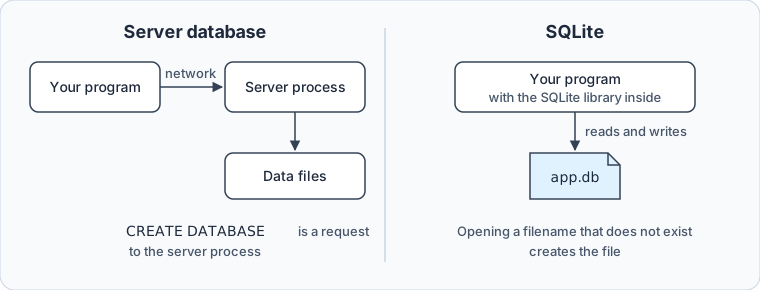
| Server database | SQLite | |
|---|---|---|
| What has to run | a server process | nothing beyond your program |
| How you create a database | send CREATE DATABASE to the server | open a filename |
| Where the data lives | files the server manages | one file you choose |
| Who may read it | database users, set with GRANT and REVOKE | whoever the file's permissions allow |
| Writers at one moment | many | one |
The last two rows come from the SQLite documentation. GRANT and REVOKE are left out because "the only access permissions that can be applied are the normal file access permissions of the underlying operating system", and the guide to appropriate uses says SQLite "will only allow one writer at any instant in time", so writers take turns.
The extension is a convention: app.db, inventory.sqlite and analytics.sqlite3 all open the same way.
SQLite ships inside every Android device, every iPhone and iOS device, every Mac, every Windows 10 and 11 installation, and the Firefox, Chrome and Safari browsers, according to sqlite.org's page on the most widely deployed database engine. Its guide to appropriate uses adds embedded devices and the internet of things, and data analysis, where you import raw data from CSV files into one database and query it from the sqlite3 shell.
When you need a second database
On a server you would create a second database with CREATE DATABASE. SQLite gives you ATTACH DATABASE instead, which "adds another database file to the current database connection", as the ATTACH documentation puts it. SQLite creates the file if it doesn't exist, and you reach its tables through the name you give it:
ATTACH DATABASE 'archive.db' AS archive;
CREATE TABLE archive.orders (order_id INTEGER PRIMARY KEY);
A default build allows ten attached databases, as the limits page documents, and the eleventh fails with too many attached databases - max 10.
Create a SQLite database in the sqlite3 CLI
The sqlite3 shell is a single program with no server behind it. Check whether it's installed:
sqlite3 --version
If the command isn't found, download the sqlite-tools bundle for your system from the SQLite download page. The shell is inside the zip, with nothing else to install.
Create the file
sqlite3 app.db
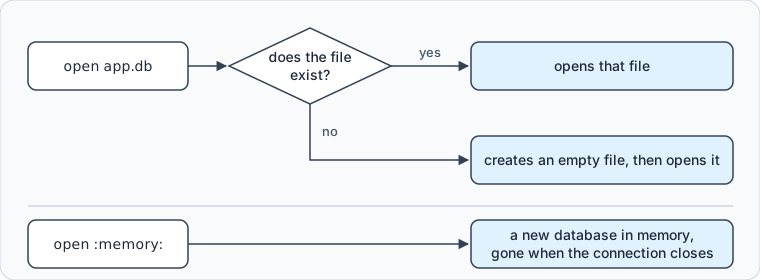
The command line documentation says what happens: "If the named file does not exist, a new database file with the given name will be created automatically." A name that exists opens that file instead, so the same command creates the database once and reopens it every time after. A bare name puts the file in the current directory, so an application should pass an absolute path that it controls.
Open or create a file from inside the shell
Started without a filename, the shell uses "a transient in-memory database" that disappears when you exit, which is what double-clicking sqlite3.exe on Windows gives you. .open switches to a file, and the file "is created if it does not previously exist":
sqlite> .open app.db
Add the first table
CREATE TABLE customers (
    customer_id INTEGER PRIMARY KEY,
    name        TEXT NOT NULL,
    email       TEXT UNIQUE
);
SQLite CREATE TABLE covers the rest of the syntax, and SQLite Constraints the rules a table can enforce.
Check what you created
Three dot commands answer the questions you have right after creating a database:
.databaseslists the database files the connection has open, starting withmain..tableslists the tables..schema customersprints theCREATEstatement that SQLite stored.
sqlite> .databases
main: /home/you/app.db r/w
sqlite> .tables
customers
.quit closes the shell and leaves app.db on disk. The file format is cross-platform, so the file "can be copied and used on a different machine with a different architecture".
Create a SQLite database in Python
Python's built-in sqlite3 module follows the same rule: connect() creates the file when the name isn't there.
import sqlite3

connection = sqlite3.connect("app.db")
connection.execute("""
    CREATE TABLE IF NOT EXISTS customers (
        customer_id INTEGER PRIMARY KEY,
        name        TEXT NOT NULL,
        email       TEXT UNIQUE
    )
""")
connection.commit()
connection.close()
IF NOT EXISTS makes the script safe to run at every start of your application. The file appears the moment connect() runs, before anything is written. Measured with Python 3.14 and SQLite 3.50.4:
| After this step | Size of app.db |
|---|---|
sqlite3.connect("app.db") | 0 bytes |
CREATE TABLE customers and commit() | 12,288 bytes |
An empty file is a valid, empty database. The first table fills three pages of 4,096 bytes: one for SQLite's list of tables, one for customers, and one for the index that SQLite builds to enforce UNIQUE on email. That column needs no index of its own, and SQLite Indexes covers when another one pays.
Create an in-memory database in Python
Tests want a database that never touches the disk. Pass :memory: and no file is created at all:
import sqlite3

first = sqlite3.connect(":memory:")
first.execute("CREATE TABLE customers (customer_id INTEGER PRIMARY KEY)")

second = sqlite3.connect(":memory:")
print(second.execute("SELECT count(*) FROM sqlite_master").fetchone()[0])
0
The second connection sees an empty database. The in-memory database documentation states both rules that matter here: "Every :memory: database is distinct from every other", and each one "ceases to exist as soon as the database connection is closed". Tests running side by side can't interfere with each other, and none of them leaves anything behind.
Create a SQLite database in DbSchema
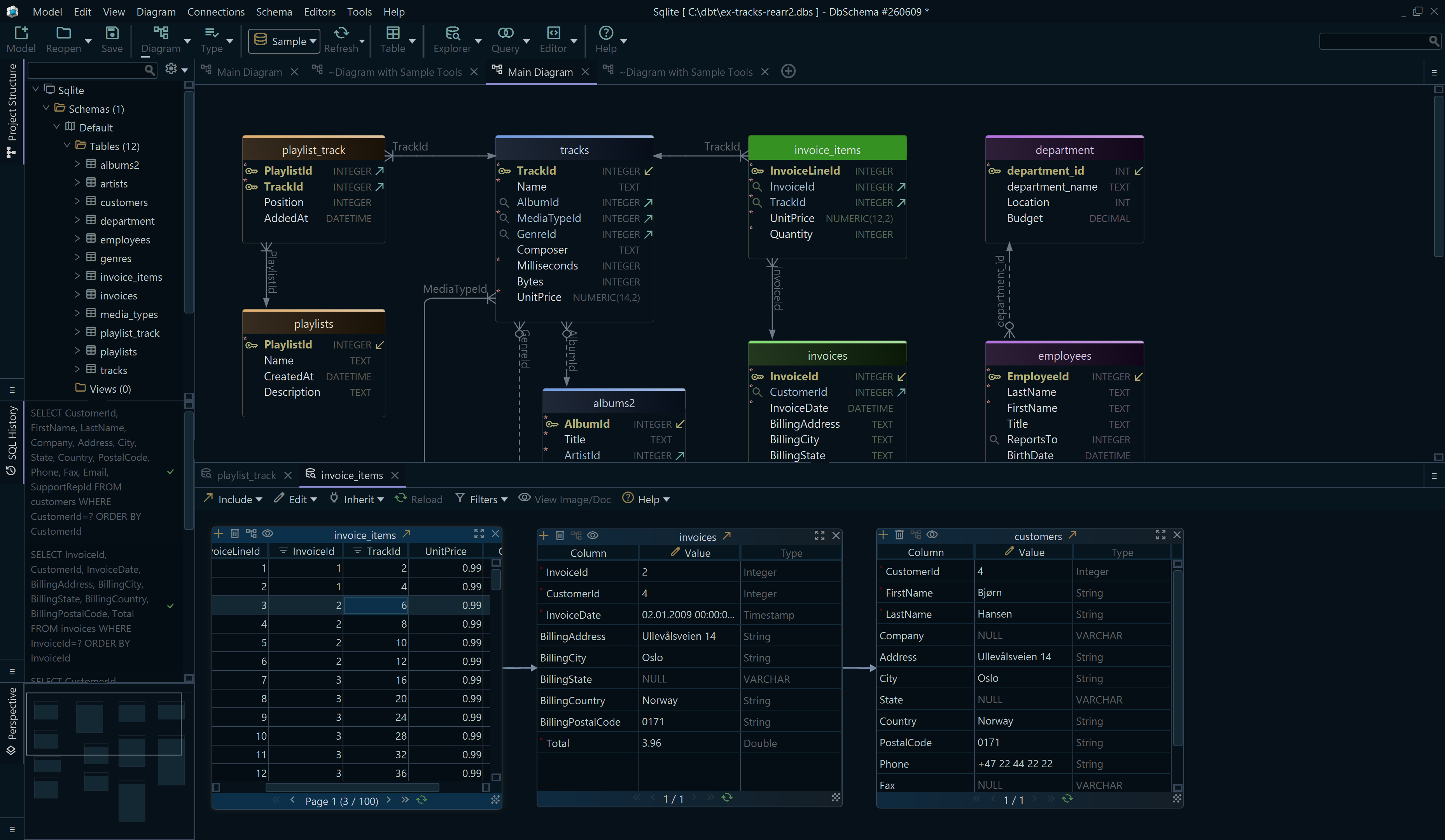
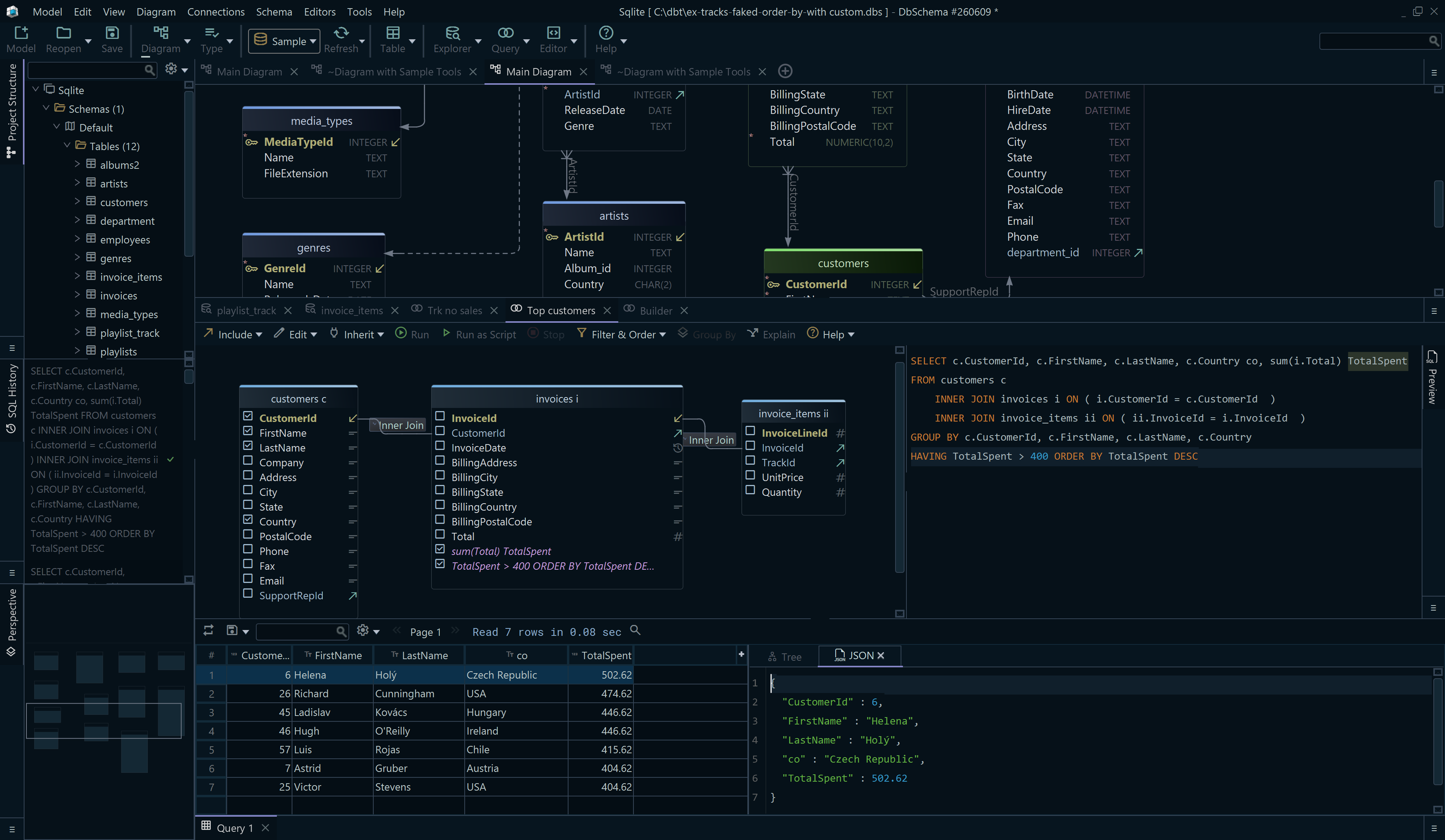

A SQLite file has no server to log in to, so DbSchema needs only its path. DbSchema opens the file and draws it as a diagram, which helps once the schema holds more tables than you can keep in your head. The steps start on the Welcome Screen:

- Install DbSchema and start it. On the Welcome Screen, choose Connect to Database.
- Pick SQLite in the Choose Your Database list. DbSchema downloads the JDBC driver for SQLite by itself.
- In the Connection Dialog, give the path of your
.dbfile. For a new file, use Create New with a full path, because a bare name puts the file in your home folder. - Click Connect, and DbSchema reverse-engineers the tables, columns, indexes and foreign keys in the file and lays them out as a diagram.

Two things now exist side by side. The .db file is the database. The diagram belongs to a design model that DbSchema keeps separately and can save as a .dbs file. While the connection is live, a table you add on the diagram is created in the SQLite file straight away, and the statement appears in the SQL History pane:

Work disconnected instead and your edits stay in the model. Reconnect and open Schema → Synchronize Model with Database: DbSchema lists every difference between the model and the file and generates the SQL that applies it, for you to review before it runs. Synchronize with the Database walks through the dialog.
To draw the tables before any file exists, start with Design from Scratch on the Welcome Screen, then connect to the new file and run Schema → Create or Upgrade Schema in Database, which generates the CREATE statements for you to review. Queries against the file go in the SQL Editor.
Settings to decide before data goes in
Wrap setup scripts in a transaction
A script that fails halfway through creating tables leaves a half-built database. SQLite rolls back CREATE TABLE like any other change, so run the script between BEGIN and COMMIT and the file gets the whole schema or none of it. SQLite Transactions covers the details.
Switch to WAL when readers and writers overlap
PRAGMA journal_mode = WAL;
Write-Ahead Logging changes who waits for whom: "WAL provides more concurrency as readers do not block writers and a writer does not block readers", according to the WAL documentation. You set it once per database, because "PRAGMA journal_mode=WAL is persistent." WAL also adds files beside the database:
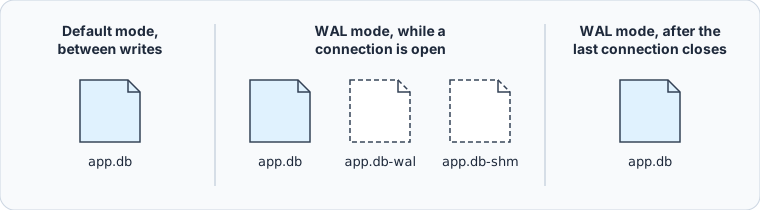
The last connection to close "does one last checkpoint and then deletes the WAL and its associated shared-memory file". Until then, anything that copies the database has to account for both extra files. And every process using the database has to be on the same machine, because "WAL does not work over a network filesystem".
Back up with .backup, not cp
sqlite> .backup app-backup.db
.backup copies the database through SQLite's backup API, which is written for a database that is in use while it's copied. Copying the file with an external tool carries a risk that the same page names: if the power or the operating system fails during the copy, "the backup database may be corrupted".
Creating the file takes one command. The decisions a server would have made for you are now yours: where the file lives, which journal mode it runs in, and what copies it at night. Each of them is easier to make before there's data in the file. Download DbSchema at https://dbschema.com/download.html, point a SQLite connection at the file you just made, and the schema comes back as a diagram. Connecting, reverse-engineering, the diagrams and the SQL Editor are in the free Community Edition. Design from Scratch, saving the design as a .dbs file, and synchronizing it with the database are in Pro.
Sources
- SQLite Is Serverless
- SQL Features That SQLite Does Not Implement
- Most Widely Deployed SQL Database Engine
- Appropriate Uses For SQLite
- ATTACH DATABASE
- Implementation Limits For SQLite
- SQLite Download Page
- Command Line Shell For SQLite
- Single File Database
- In-Memory Databases
- Write-Ahead Logging
- SQLite Backup API









