Essential PostgreSQL Commands Reference
For anyone with a psql prompt on a Postgres database somebody else built, who needs to see what is in it.
On this page
You have a psql prompt open on a database you did not create, and you need the table list before you can write a query against it. The answers are backslash commands: \dt for the tables, \d for one table, \l for the databases on the server. Anything you type that starts with an unquoted backslash is handled by psql itself, so it never reaches the server as SQL. The examples below run on PostgreSQL 18 against two tables and a view:
-- Created as the postgres user, in a database called sports_db.
CREATE TABLE teams (
  team_id int CONSTRAINT teams_pkey PRIMARY KEY,
  name    text NOT NULL,
  city    text
);

CREATE TABLE players (
  player_id int CONSTRAINT players_pkey PRIMARY KEY,
  team_id   int NOT NULL CONSTRAINT players_team_fk REFERENCES teams,
  name      text NOT NULL,
  position  text
);

CREATE VIEW team_roster AS
  SELECT t.name AS team, p.name AS player
  FROM teams t JOIN players p USING (team_id);
Open a session on the database
psql -d sports_db -U reporting -W
psql -d sports_db -U reporting -W opens a session on sports_db as the reporting user. The -W option forces the password prompt[1] before psql connects. Leave it out and psql still prompts when the server asks for a password, but only after spending a connection attempt to find that out. Without -d and -U, psql falls back to your operating-system user name for both, so on a development machine where the database is named after you, psql on its own is enough.
The prompt tells you where you landed. Its default is the string %/%R%x%#[1], which prints the database name, then an equals sign, then the transaction status, then a hash when the session user is a superuser and a greater-than sign for everyone else. So sports_db=# means you connected to sports_db with superuser rights, and sports_db=> means you did not.
A server on another machine takes the host and the port as well:
psql -h db.internal -p 5432 -d sports_db -U reporting -W
Once you are in, \c moves the session somewhere else without quitting. \c warehouse reconnects to another database on the same server, and \c warehouse alice reconnects as another user at the same time. Every backslash command after that runs against the database you landed in, and \conninfo prints which database, user and host[1] that is, with the SSL details when the connection is encrypted.
What the database contains
\l lists the databases on the server with their owners, character set encodings and access privileges. \dn lists the schemas inside the current database. Then come the object lists, one letter per kind: \dt for tables, \dv for views, \di for indexes, \dT for data types and \du for roles.
          List of relations
 Schema |  Name   | Type  |  Owner
--------+---------+-------+----------
 public | players | table | postgres
 public | teams   | table | postgres
(2 rows)
The view is missing from that list because \dt asks for tables only; \dv prints team_roster the same way. Each of these commands takes a pattern, and the pattern may name a schema: \dt information_schema.* lists the tables of one schema, and \dt *.* lists every table in the database[1] instead of only the ones visible on your search path. The same list is also available as a query against the system catalogs, which is what you want inside a script.
Append + to any of them for more per object. \dt+ adds each table's persistence status[1], its size on disk and its description, which is where the text of a COMMENT ON TABLE statement shows up.
Describing one table
\d players prints the columns of one table with their types, their nullability and their defaults, followed by its indexes, constraints and triggers:
                  Table "public.players"
  Column   |  Type   | Collation | Nullable | Default
-----------+---------+-----------+----------+---------
 player_id | integer |           | not null |
 team_id   | integer |           | not null |
 name      | text    |           | not null |
 position  | text    |           |          |
Indexes:
    "players_pkey" PRIMARY KEY, btree (player_id)
Foreign-key constraints:
    "players_team_fk" FOREIGN KEY (team_id) REFERENCES teams(team_id)
The primary key appears under Indexes rather than as a column flag, because PostgreSQL implements it as a unique index. The foreign key is listed by its constraint name, so \d teams on the other side of that relationship reports the same constraint as referenced by players.
\d+ players adds the comment stored on each column and the table's access method, and \d+ team_roster adds the SELECT behind a view, so you can read a view's definition without leaving the session. \d takes a pattern like the list commands do, so \d play* describes every relation whose name starts with play. \d with no argument at all is equivalent to \dtvmsE[1], which lists every visible table, view, materialized view, sequence and foreign table in one go. When you need the same column list from a query rather than from the prompt, it comes out of information_schema.columns.
Who can connect and who can read each table
\du lists the roles on the server with their attributes, such as Superuser, Create DB and Replication. Since PostgreSQL 16 it no longer carries a Member of column[2], because role memberships moved to \drg, which prints each granted membership with its options (ADMIN, INHERIT, SET) and the role that granted it[1].
                                 List of roles
 Role name |                         Attributes
-----------+------------------------------------------------------------
 postgres  | Superuser, Create role, Create DB, Replication, Bypass RLS
 reporting |
Table privileges are a separate list. \dp prints the access privileges on tables, views and sequences, and \z is an alias for it[1]. Grant the reporting role read access on one table, then ask for the privileges back:
GRANT SELECT ON players TO reporting;
=> \dp players
                                   Access privileges
 Schema |  Name   | Type  |      Access privileges      | Column privileges | Policies
--------+---------+-------+-----------------------------+-------------------+----------
 public | players | table | postgres=arwdDxtm/postgres +|                   |
        |         |       | reporting=r/postgres        |                   |
(1 row)
Each line in the Access privileges column is one grantee, written as grantee=privilege-abbreviations/grantor[3]. The letter r is SELECT, w is UPDATE, and arwdDxtm is every privilege a table can carry. An empty Access privileges column is the one that misleads: it does not mean nobody has access, it means the object still has its default privileges, and those always include every privilege for the owner.
Dumping a database and loading it back
pg_dump and pg_restore are separate programs rather than backslash commands, so they run in your shell and not at the psql prompt. pg_dump on its own writes a plain SQL script[4] that psql -f replays. The custom format is the one worth defaulting to, because pg_restore can then pick and reorder what it restores:
pg_dump -h db.internal -U reporting -Fc -f sports_db.dump sports_db
pg_restore -h db.internal -U postgres -d sports_new sports_db.dump
-Fc selects the custom format, which is compressed by default[4], and -f names the output file. pg_restore -d loads that archive straight into an existing database, so create the target database first. Add --clean to drop each object before recreating it, and pass --if-exists alongside it, because otherwise the drops of objects that are not there[5] report errors. pg_restore -l prints the archive's table of contents when you want to restore only part of it.
The trap is what pg_dump leaves out. Roles and tablespaces are cluster-wide objects, and no single-database dump contains them, so a restore onto a fresh server fails on every GRANT to a role that does not exist yet. pg_dumpall -g dumps those globals[6] on their own, and you load them before the database dump.
-j runs the work in parallel. pg_dump accepts it only with the directory format, because that is the only format in which several processes can write at the same time, and it opens one more connection than the number of jobs[4] you ask for. pg_restore takes -j[5] against any archive it restores directly into a database.
Sessions that are still open, and what they wait for
pg_stat_activity holds one row per backend process[7], which is the closest thing PostgreSQL has to a process list:
SELECT pid, usename, state, wait_event_type, query
FROM pg_stat_activity
WHERE datname = 'sports_db';
  pid  |  usename  |        state        | wait_event_type |             query
-------+-----------+---------------------+-----------------+-------------------------------
 41207 | reporting | active              | IO              | SELECT * FROM team_roster;
 41244 | reporting | idle in transaction | Client          | UPDATE players SET position='C'
(2 rows)
The state column is the one to read first. active means the backend is executing a query, idle means it is waiting for a new client command, and idle in transaction means it is inside a transaction but running nothing[7]. That last one is the state that holds locks while appearing to do nothing, and it is almost always a BEGIN with no COMMIT or ROLLBACK behind it.
pg_blocking_pids finds who is in the way[8]. Give it a process ID and it returns the array of process IDs that hold or are queued ahead of the lock that process is waiting for, and an empty array when nothing is blocking it:
SELECT pid, pg_blocking_pids(pid) AS blocked_by, query
FROM pg_stat_activity
WHERE cardinality(pg_blocking_pids(pid)) > 0;
pg_locks is the row-by-row view behind that answer, with one row per lock held or awaited and a locktype column naming what is locked[9]: a relation, a page, a tuple, a transaction ID or an advisory lock.
Two functions end the problem once you have the pid. pg_cancel_backend cancels the running query and leaves the session connected, and pg_terminate_backend ends the session[10] outright. Both work on your own backends and on backends of roles you are a member of, and only a superuser can signal a superuser's backend.
Help, history and the full command list
\? prints the list of backslash commands, and \h prints the SQL side: \h on its own lists every statement psql has syntax help for, and \h CREATE TABLE prints that one statement's synopsis. \s prints the command history of the session, and \s history.sql writes it to a file[1] instead, which is the quickest way to keep the ten commands you just worked out.
Three more make a session easier to read. \x switches to expanded output, printing one column per line with the column name on the left, which is what you want for a row of forty columns. \timing turns on the display[1] of how long each statement took, in milliseconds. \q quits the session.
The backslash commands in one table
The commands used above, in the order you normally reach for them. The three dump programs are on the list as well, and the middle column says whether a command runs at the psql prompt or in your shell.

| Command | Runs in | What it does |
|---|---|---|
| psql -d database -U user -W | shell | Connect as a given user, with a password prompt |
| psql -h host -p port -d database -U user -W | shell | Connect to a database on another host |
| \c dbname username | psql | Switch the session to another database or user |
| \conninfo | psql | Show the current database, user and host |
| \l | psql | List the databases on the server |
| \dn | psql | List the schemas |
| \dt | psql | List the tables |
| \dv | psql | List the views |
| \di | psql | List the indexes |
| \dT+ | psql | List the data types with their sizes and allowed values |
| \du | psql | List the roles with their attributes |
| \drg | psql | List role memberships with their options and grantor |
| \dp | psql | List table, view and sequence privileges |
| \d table_name | psql | Show one table's columns, indexes and constraints |
| \d+ table_name | psql | Add column comments, the view definition and the access method |
| \s | psql | Print the command history |
| \x | psql | Switch to expanded output, one column per line |
| \timing | psql | Show how long each statement takes |
| \? | psql | List the backslash commands |
| \h statement | psql | Show the syntax of one SQL statement |
| \q | psql | Quit psql |
| pg_dump -Fc -f file db | shell | Write a custom-format dump of one database |
| pg_restore -d db file | shell | Load a custom-format dump into a database |
| pg_dumpall -g | shell | Dump the roles and tablespaces of the whole cluster |
Seeing the same tables as a diagram in DbSchema
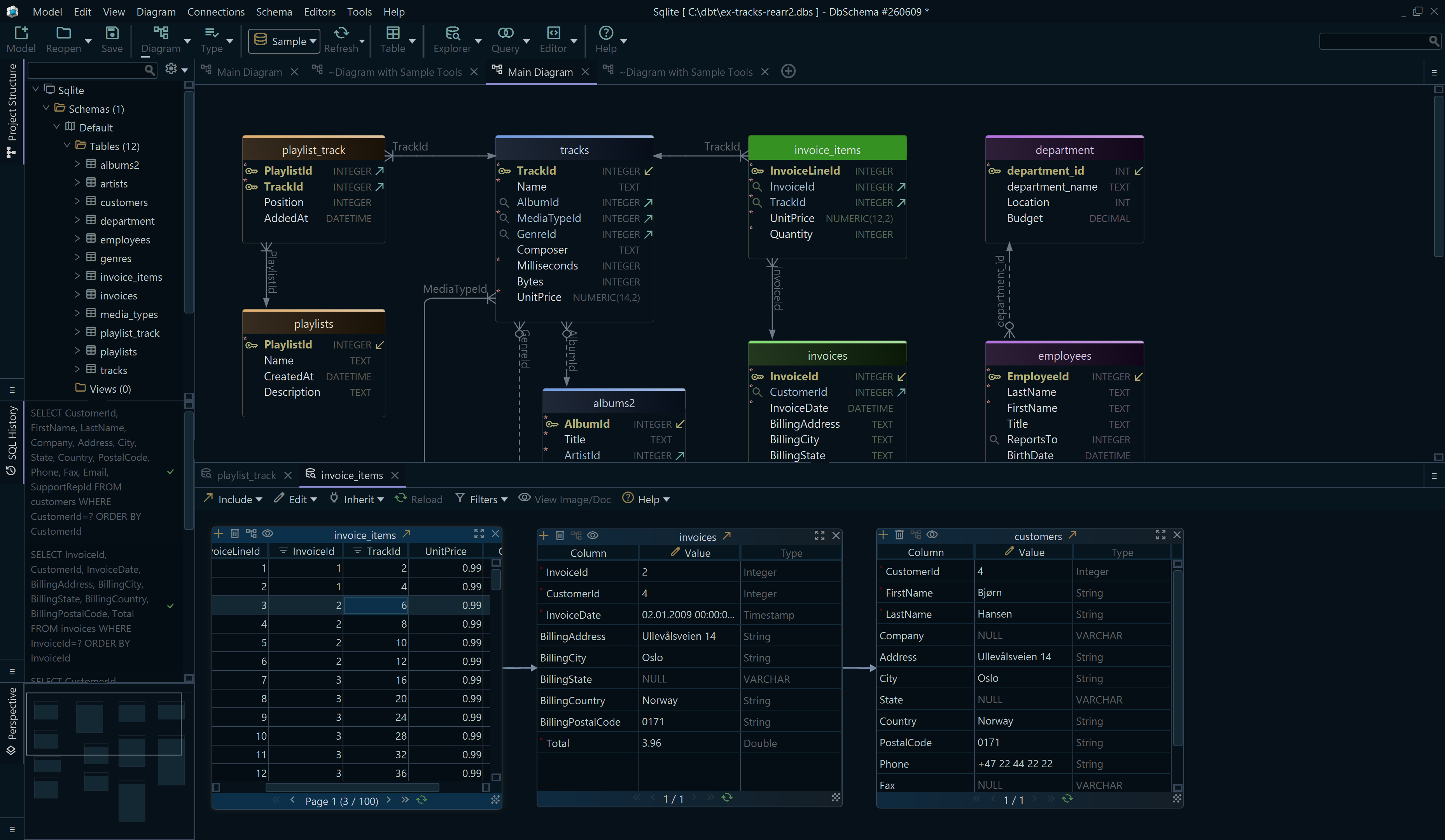
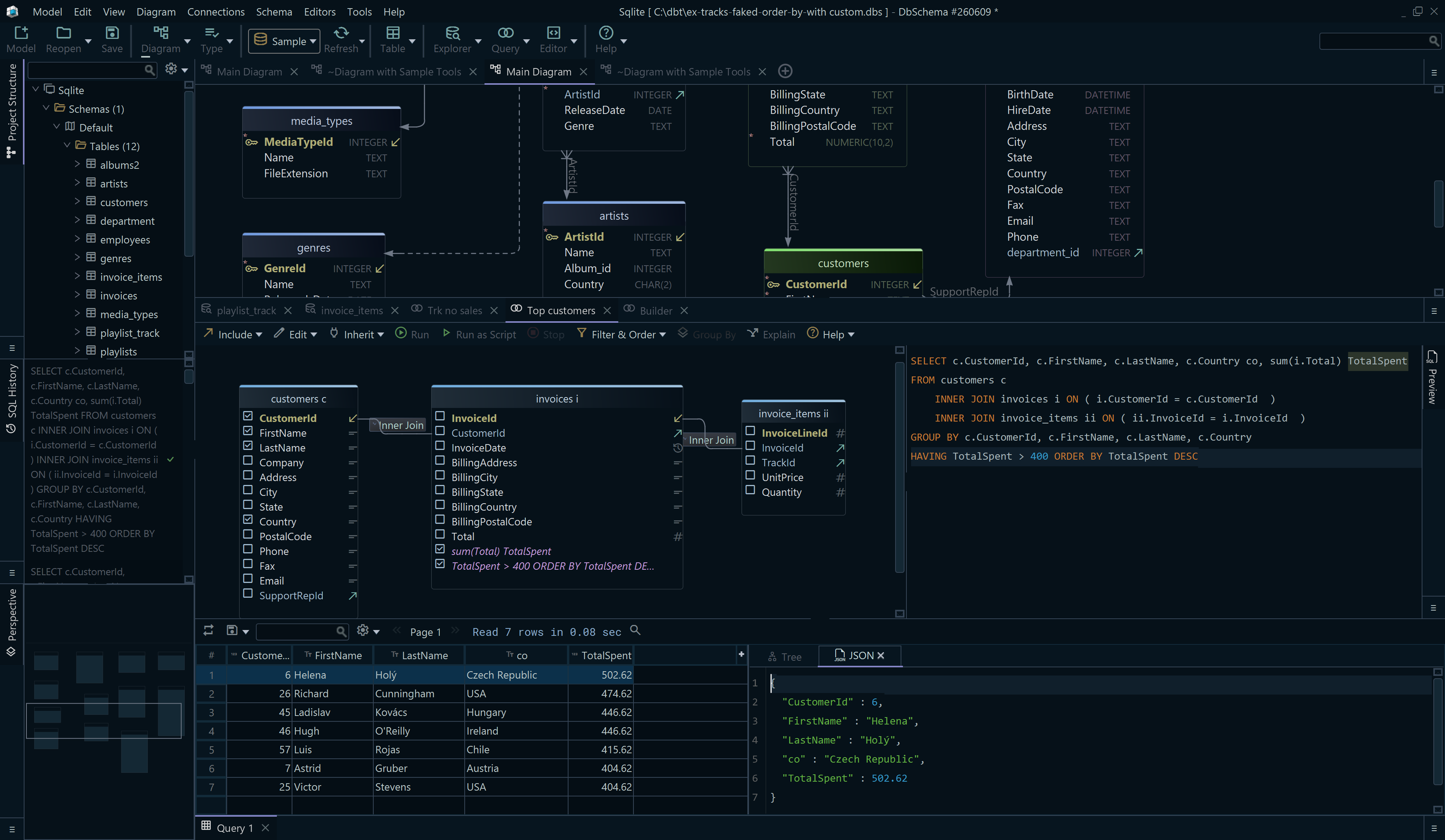
What none of these commands gives you is the shape of the schema. \d prints one table at a time, and a foreign key stays a line of text naming the constraint, so working out how eight tables join means reading eight outputs and holding the result in your head. DbSchema connects to the same database, reverse-engineers the schema into a diagram, and draws the tables \dt listed with the foreign key lines between them. The SQL Editor sits beside that diagram for the queries you were writing anyway, and the Relational Data Editor opens parent and child tables side by side over those foreign keys, so picking a team in one pane refilters the players pane to that team's rows.


Download DbSchema and connect it to the database your psql prompt is already on. Reverse-engineering reads the live database and writes the result into the DbSchema model, and nothing you move on the diagram reaches the database until you generate the script and run it. Connecting, reverse-engineering into a diagram and the SQL Editor are in the free Community Edition, and the Relational Data Editor is in Pro.
Sources
- psql, PostgreSQL 18 documentation
- PostgreSQL 16 release notes
- Privileges, PostgreSQL 18 documentation
- pg_dump, PostgreSQL 18 documentation
- pg_restore, PostgreSQL 18 documentation
- pg_dumpall, PostgreSQL 18 documentation
- The cumulative statistics system, PostgreSQL 18 documentation
- System information functions, PostgreSQL 18 documentation
- pg_locks, PostgreSQL 18 documentation
- System administration functions, PostgreSQL 18 documentation
See the schema psql prints one table at a time
DbSchema connects to the same PostgreSQL database, reverse-engineers it into an ER diagram, and draws the foreign keys between the tables. Connecting, reverse-engineering into a diagram and the SQL Editor are in the free Community Edition.









