MySQL Default Username and Password | DbSchema
There is no single universal MySQL default password anymore. The administrative account is usually root, but whether it uses a password, a temporary password, or an installer-defined secret depends on how MySQL 5.7, 8.0, or 8.4 was initialized.
| Default MySQL admin username | Usually root |
| Default password | No universal default; it may be set during install, generated temporarily, or left blank only with insecure initialization |
| Most common recovery path | Reset root with ALTER USER and restart MySQL normally |
| Best practice after login | Create a separate least-privilege user and connect with tools like DbSchema instead of using root daily |
Two important edge cases:
- Linux packages and cloud images may configure local-only authentication or custom setup flows.
- Docker containers often use environment variables such as
MYSQL_ROOT_PASSWORD, so the password comes from the container configuration, not a built-in MySQL default.
How to check the current root account
If you can still log in, verify the account before resetting anything:
SHOW CREATE USER 'root'@'localhost';
If you want to inspect user/host/plugin combinations directly:
SELECT user, host, plugin
FROM mysql.user
WHERE user = 'root';
This helps answer common questions quickly:
- is the admin account really
root? - is it restricted to
localhost? - which authentication plugin is in use?
After you regain access, it is smart to create a non-root account for everyday work. That is especially useful when you connect from DbSchema through the MySQL JDBC driver, because you can keep design and query tasks separate from full server administration.
Reset the MySQL root password on Windows
On Windows, the init-file method is usually the safest recovery option because it does not require leaving MySQL running with grants disabled.
Reset Syntax
ALTER USER 'root'@'localhost' IDENTIFIED BY 'NewStrongPassword!';
Step-by-step
- Stop the MySQL service.
- Create a file such as
C:\mysql-init.txtcontaining:
ALTER USER 'root'@'localhost' IDENTIFIED BY 'NewStrongPassword!';
- Open Command Prompt and go to the MySQL
binfolder:
cd "C:\Program Files\MySQL\MySQL Server 8.4\bin"
- Start MySQL with the init file:
mysqld --defaults-file="C:\ProgramData\MySQL\MySQL Server 8.4\my.ini" --init-file=C:\mysql-init.txt --console
- After MySQL starts and executes the file, stop it, delete
C:\mysql-init.txt, and start the service normally.
If your installation path is different, adjust both the
binfolder andmy.inilocation.
Reset the MySQL root password on Linux or macOS
If you cannot use an init file, the fallback recovery method is to start MySQL with --skip-grant-tables. This works, but it is less secure, so keep the server isolated and restart it normally as soon as the password is changed.
- Stop MySQL.
- Start it without grant checks:
sudo mysqld --skip-grant-tables --skip-networking &
- Connect locally:
mysql -u root
- Re-enable grant-table access in the session and reset the password:
FLUSH PRIVILEGES;
ALTER USER 'root'@'localhost' IDENTIFIED BY 'NewStrongPassword!';
- Stop that instance and restart MySQL normally.
For MySQL 5.7, 8.0, and 8.4, ALTER USER is the modern reset statement. Older SET PASSWORD examples still exist online, but they are mainly useful when you are dealing with much older releases.
Secure MySQL after regaining access
Once you can log in again, do not stop at the password reset.
- Create a dedicated app user instead of using
rooteverywhere. See how to create a new MySQL user. - Limit hosts whenever possible. Prefer
'app_user'@'localhost'or'app_user'@'10.0.%'instead of'app_user'@'%'. - Grant only the privileges you need.
- Document the schema and access model so teams know which databases and users exist.
- Review the schema visually to confirm you are connecting to the correct database and environment.
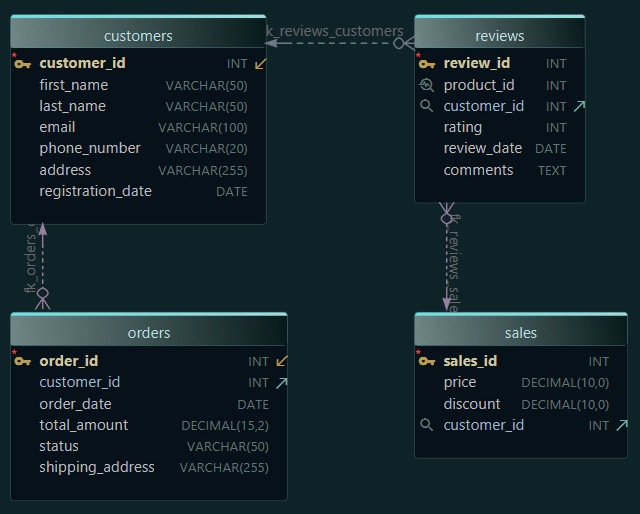
If you are rebuilding access after a messy outage, pairing the reset with a schema review is often faster than working blind. You can also use this moment to generate interactive schema documentation or visualize the model with MySQL ER diagrams.
Use DbSchema with a safer MySQL account
After root access is restored, use DbSchema with a dedicated account rather than with root:
- create a limited user for development, reporting, or documentation
- connect with the MySQL JDBC driver
- follow the Connect to Database guide
- inspect the schema in the diagram view
- publish browsable HTML5 documentation
That workflow is safer and easier to maintain than sharing one root password across the whole team.
FAQ
What is the default username and password for MySQL?
The default administrative username is usually root, but there is no guaranteed default password across MySQL 5.7, 8.0, and 8.4. It may be installer-defined, temporarily generated, or blank only if MySQL was initialized insecurely.
Where do I find the temporary MySQL root password?
If MySQL was initialized with mysqld --initialize, the temporary password is written to standard error or the MySQL error log. On Windows, --console prints it to the console.
Do I need FLUSH PRIVILEGES after ALTER USER?
No. ALTER USER, CREATE USER, and GRANT update privileges immediately. FLUSH PRIVILEGES is only required after directly editing the mysql grant tables or during some recovery flows started with --skip-grant-tables.
Is the default MySQL password blank?
Not reliably. A blank password is possible only in insecure initialization scenarios and should not be assumed for modern installations.
Should I connect DbSchema as root?
Usually no. Create a dedicated user with only the privileges DbSchema needs for design, query, or documentation work.
Conclusion
For modern MySQL installations, the right answer is not "the default password is X" but "the root account is usually root, and the password depends on the install method." Once you recover access, move quickly to a safer setup: create limited users, verify the schema, and document the database with DbSchema.