SQLite Create Database – CLI, Python, GUI, and DbSchema Setup | DbSchema

Table of Contents
- What "create database" means in SQLite
- Prerequisites
- Create a SQLite database in the sqlite3 CLI
- Create a SQLite database in Python
- Create a SQLite database with browser or desktop tools
- Create and model the database in DbSchema
- Verify the file and add the first table
- Performance and safety tips
- FAQ
- Conclusion
- References
SQLite is different from server databases such as PostgreSQL or MySQL: there is no standalone CREATE DATABASE statement. In SQLite, the database is the file, so creating or opening a new .db file is what creates the database.
That simple model is one reason SQLite is popular for local apps, prototypes, test environments, edge devices, and desktop tools. In this guide, you will learn how to create a SQLite database from the sqlite3 command line, with Python, using browser-style tools, and visually in DbSchema.
What "create database" means in SQLite
When people search for SQLite create database, they usually want one of these actions:
- create a new
.dbfile on disk - open an existing database file
- create an in-memory database for testing
- create the file and immediately add tables, indexes, and constraints
Typical SQLite database filenames include:
app.dbinventory.sqliteanalytics.sqlite3
You can also create an in-memory database that exists only while the connection stays open:
:memory:
If your next step is defining tables, continue with SQLite CREATE TABLE. If you are planning relationships or validation rules, also review SQLite Constraints.
Prerequisites
To follow this tutorial, it helps to have:
- SQLite installed locally if you want to use the
sqlite3CLI - Python 3 if you want to create the database from application code
- a GUI tool such as DbSchema if you prefer visual design
Useful follow-up resources:
Create a SQLite database in the sqlite3 CLI
The fastest way to create a SQLite database is to open a new file from the terminal.
Method 1: create the file directly
sqlite3 app.db
If app.db does not exist, SQLite creates it. If it already exists, SQLite opens it.
Method 2: create it from inside the shell
sqlite3
Then run:
.open app.db
.databases
Example output:
| Seq | Name | File |
|---|---|---|
| 0 | main | .../app.db |
Create the first table immediately
CREATE TABLE IF NOT EXISTS customers (
    customer_id INTEGER PRIMARY KEY,
    name        TEXT NOT NULL,
    email       TEXT UNIQUE
);
Helpful shell commands after creation:
.tables
.schema customers
.quit
If you are new to schema design, DbSchema can generate this SQL visually and keep the model documented. See DbSchema schema design docs.
Create a SQLite database in Python
Python's built-in sqlite3 module creates the database file as soon as you connect to a new filename.
import sqlite3

with sqlite3.connect("app.db") as connection:
    cursor = connection.cursor()
    cursor.execute("""
        CREATE TABLE IF NOT EXISTS customers (
            customer_id INTEGER PRIMARY KEY,
            name        TEXT NOT NULL,
            email       TEXT UNIQUE
        )
    """)
Why this method is useful:
- it works well in setup scripts and tests
- you can create the file and schema in one step
- it fits naturally into desktop apps, scripts, and small web services
Create an in-memory database in Python
import sqlite3

connection = sqlite3.connect(":memory:")
This is ideal for unit tests, demos, or short-lived transformations.
For larger projects, pair Python setup scripts with visual review in DbSchema so you can inspect tables, foreign keys, and indexes before shipping changes.
Create a SQLite database with browser or desktop tools
Some users prefer a SQLite browser or GUI instead of the terminal. Common tooling paths include:
| Tooling approach | Best for | Typical workflow |
|---|---|---|
| sqlite3 CLI | fast local setup | create file, run SQL, inspect schema |
Python sqlite3 | application code and automation | connect, create tables, seed data |
| Browser/desktop SQLite tools | ad-hoc browsing and quick edits | create file, click through schema screens |
| DbSchema | schema design, documentation, and team workflows | model visually, generate SQL, sync changes |
A browser-style SQLite tool is convenient when you want to inspect a file quickly. DB Browser for SQLite is a common example of this workflow. But if you also need diagrams, reusable schema docs, relationship management, and deployment scripts, DbSchema is usually a better long-term choice.
Create and model the database in DbSchema
DbSchema is a SQLite client and visual designer. It is especially useful when "create database" really means "create the file, design the tables, and keep the schema understandable for other people."
Basic workflow in DbSchema
- Install DbSchema from the download page.
- Open New Project or create a new connection.
- Choose SQLite as the database type.
- Select an existing file or specify a new file such as
app.db. - Test the connection and open the project.
- Create tables visually, define columns and constraints, then generate the SQL script.
- Use the SQL Editor or synchronization tools to apply the schema.
DbSchema becomes even more valuable after the database file exists:
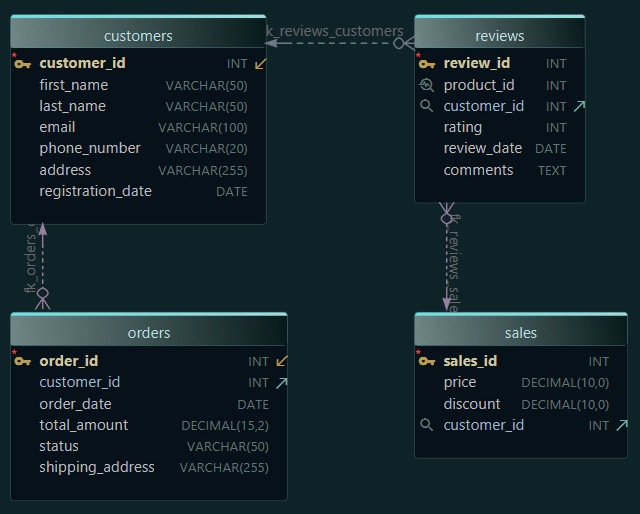
- design tables and relationships visually
- manage indexes and constraints without memorizing every syntax rule
- keep documentation close to the schema
- compare model changes before deployment
Related docs:
Verify the file and add the first table
After creating the database, verify that the file and schema behave as expected.
In sqlite3
.databases
.tables
.schema
First production-friendly table example
CREATE TABLE IF NOT EXISTS orders (
    order_id     INTEGER PRIMARY KEY,
    customer_id  INTEGER NOT NULL,
    total_cents  INTEGER NOT NULL CHECK (total_cents >= 0),
    status       TEXT NOT NULL DEFAULT 'new'
);
Good next reads after database creation:
Performance and safety tips
Creating the file is easy. Keeping it reliable is the real work.
1. Put the file in the right location
Keep the database in a predictable folder with clear backup rules and correct file permissions.
2. Use transactions for setup scripts
When creating multiple tables, wrap schema creation and seed steps in a transaction. This avoids partially created databases if a script fails. See SQLite Transactions.
3. Add indexes only after you know the query pattern
Do not add indexes blindly on day one. Start with the schema, then profile real queries and add indexes where filters, joins, and ordering need help. Continue with SQLite Indexes and SQLite EXPLAIN PLAN.
4. Consider WAL mode for concurrent apps
Many applications switch to Write-Ahead Logging for better read/write concurrency:
PRAGMA journal_mode = WAL;
5. Back up the file
SQLite is file-based, so backups are simple but still essential:
.backup app-backup.db
FAQ
Does SQLite support CREATE DATABASE?
No. SQLite creates the database when you open or connect to a new file.
Where is the SQLite database stored?
Usually in the path you specify, such as app.db or C:\data\app.db. The database is a normal file.
Can I create a SQLite database in the browser?
Yes, some browser-based and desktop tools can do this. For repeatable schema work, diagrams, and documentation, DbSchema is a stronger option than a basic browser-only workflow.
What should I do right after creating the database?
Create tables, add the right constraints, and review the first query patterns before adding indexes. Start with SQLite CREATE TABLE and SQLite Constraints.
Conclusion
To create a SQLite database, you usually just create or open a new file. You can do that from the sqlite3 shell, from Python code, with a browser-style GUI, or visually in DbSchema.
If you only need a quick local file, the CLI is enough. If you need an application setup script, Python is ideal. If you want a maintainable schema with diagrams, documentation, generated SQL, and easier team collaboration, DbSchema is the most complete workflow.