SQL Server CREATE DATABASE Guide with sqlcmd and DbSchema
For a developer who has a SQL Server instance running and needs a database of their own on it.
On this page
The application you're building needs a place for its tables, and nothing on the instance belongs to it yet. One statement creates that database:
CREATE DATABASE TestDB;
You can type it into sqlcmd, the command-line client, or have DbSchema run it from its connection
dialog; the steps for both are below. Either way, you connect with a login that holds the
CREATE DATABASE, CREATE ANY DATABASE or ALTER ANY DATABASE permission.
Create the database in sqlcmd
-
Open a command prompt on Windows, or a terminal on Linux or macOS.
-
Connect to the instance. On Windows, with Windows authentication, give only the server name: without a user name, sqlcmd signs in with a trusted connection.
sqlcmd -S localhostWith a SQL Server login, give the user name and leave the password out. sqlcmd then asks for it at a
Password:prompt, so it never appears on the command line:sqlcmd -S localhost -U sa -
Type the statement, then
GOon a line of its own. sqlcmd collects what you type and sends it to the server only when it reads GO:CREATE DATABASE TestDB; GO
Replace localhost with the name of the server when it runs on another computer, and add the
instance name after a backslash when you connect to a named instance rather than the default one.
To check that the database exists and is online, ask the catalog view that lists every database on the instance:
SELECT name, state_desc FROM sys.databases WHERE name = N'TestDB';
GO
| name | state_desc |
|---|---|
| TestDB | ONLINE |
Type EXIT to leave sqlcmd. In a setup script you don't need a session at all: -Q runs one
statement and exits.
sqlcmd -S localhost -Q "CREATE DATABASE TestDB"
Leave -P out even there. The
sqlcmd documentation
calls a password on the command line insecure; sqlcmd prompts for it, or reads it from the
SQLCMDPASSWORD environment variable. The sqlcmd of SQL Server 2025 also asks for an encrypted
connection by default, where earlier versions left encryption optional, and an encrypted connection
checks the server's certificate. If a local instance with a self-signed certificate is refused, add
-C, which trusts the certificate without checking it.
What the short statement decided for you
SQL Server doesn't build a new database from nothing. It copies the model database, one of the
system databases every instance has, gives the copy a Service Broker GUID of its own, and fills the
rest with empty pages:

Everything you didn't specify comes from model or from the instance's settings:
| What | Where the value comes from |
|---|---|
| Tables, views, procedures and types | copied from model |
| Database options and recovery model | the same as in model |
| Collation | the instance's default collation |
| Owner | the login that ran the statement |
| Primary data file size | the size of model's data file, 8 MB by default |
| File locations | the instance's default data and log folders |
| Maximum file size | none set: the data file grows until the disk is full, a log file to 2 TB |
Because model is copied, it's also the supported place for objects that every future database
should start with: a table or a procedure you add to model appears in each database created after
it. The recovery model it passes on depends on the edition, as the
model database page
notes. When you name no log file, SQL Server names it after the database by adding a suffix, which
is why a database name can be 128 characters long, but only 123 in that case.
To see the files your instance created, and their sizes, read sys.master_files:
SELECT name, type_desc, physical_name, size * 1.0 / 128 AS size_mb,
max_size, growth, is_percent_growth
FROM sys.master_files
WHERE database_id = DB_ID(N'TestDB');
It returns one ROWS row for the data file and one LOG row for the log. size counts 8-KB pages,
which is why the query divides it by 128 to get megabytes. max_size is in pages too: -1 means the
file grows until the disk is full, and 268435456 means a log file that grows to 2 TB. growth is a
number of 8-KB pages, or a percentage when is_percent_growth is 1.
These defaults suit a database you'll drop at the end of the week. For one that will hold real data, name the files yourself, because otherwise the disk they sit on, their starting size and how far they may grow are whatever the instance happens to be set to. Microsoft's how-to for creating a database goes further and advises making the data files as large as the most data you expect them to hold.
Name the files, their sizes and their growth
Microsoft's
CREATE DATABASE reference
names the files in an example like this one, which only moves them to a C:\SQLData folder: one
data file and one log file, each with a starting size, a ceiling and a growth step.
CREATE DATABASE Sales
ON (
NAME = Sales_dat,
FILENAME = 'C:\SQLData\saledat.mdf',
SIZE = 10,
MAXSIZE = 50,
FILEGROWTH = 5
)
LOG ON (
NAME = Sales_log,
FILENAME = 'C:\SQLData\salelog.ldf',
SIZE = 5 MB,
MAXSIZE = 25 MB,
FILEGROWTH = 5 MB
);
GO
ON describes the data file and LOG ON the log file, with the same five options in each:

SIZE = 10 has no unit, so it means 10 MB; the log file's SIZE = 5 MB says the same thing
explicitly. KB, GB and TB work too, and FILEGROWTH also takes a percentage. PRIMARY isn't
written, so the first file listed becomes the primary file. The extensions follow the
documentation's convention: .mdf for the primary data file, .ndf for further data files and
.ldf for the log.
FILENAME is a path on the server's own disks, not on the computer you type the statement on, and
the reference says the path must exist before the statement runs. C:\SQLData has to be there
already; SQL Server creates the files in it, not the folder.
The collation comes from the instance unless you name one with COLLATE. The reference shows it
with a French collation that ignores case and accents:
CREATE DATABASE MyOptionsTest COLLATE French_CI_AI;
GO
When CREATE DATABASE fails
A first attempt can fail with these errors, shown with the message text from SQL Server's error lists (0 to 999, 1000 to 1999):
| Error | Message | Cause |
|---|---|---|
| 1801 | Database 'TestDB' already exists. Choose a different database name. | the name is taken on this instance |
| 262 | CREATE DATABASE permission denied in database 'master'. | the login lacks the permission |
| 226 | CREATE DATABASE statement not allowed within multi-statement transaction. | a transaction is open |
| 1802 | CREATE DATABASE failed. Some file names listed could not be created. | a FILENAME the server can't create |
Error 226 comes from a rule of the statement: CREATE DATABASE runs only in autocommit mode, the
default, and never inside BEGIN TRANSACTION or an implicit transaction. For 262, run the statement
as a login that holds one of the permissions from the top of this page. 1802 arrives with the related
errors that name the file, for example one in a folder that doesn't exist.
A script that runs more than once can look for the name first. This is the check Microsoft's
SSMS quickstart
puts in front of its CREATE DATABASE:
IF NOT EXISTS (SELECT name FROM sys.databases WHERE name = N'TestDB')
CREATE DATABASE TestDB;
GO
SQL Server editions and the limits they set
SQL Server is Microsoft's relational database engine, queried with Transact-SQL. The Database Engine that holds your database runs on Windows, and since SQL Server 2017 on Linux and in containers as well. Its installer also offers the services built around it: Integration Services for moving and transforming data, and Analysis Services for OLAP. Security features such as Always Encrypted, row-level security and auditing are in every edition, Express included, while transparent data encryption needs Standard or Enterprise.
What the edition changes is how much of the computer the engine may use, how large one database may grow, and the license. Express is free, and a Developer edition carries the features of a paid edition under a license for development and test, not production. The limits moved between SQL Server 2022 and SQL Server 2025:
| Edition | Largest database, 2022 | Largest database, 2025 | Buffer pool, 2022 | Buffer pool, 2025 |
|---|---|---|---|---|
| Enterprise | 524 PB | 524 PB | operating system maximum | operating system maximum |
| Standard | 524 PB | 524 PB | 128 GB | 256 GB |
| Web | 524 PB | not offered | 64 GB | not offered |
| Express | 10 GB | 50 GB | 1,410 MB | 1,410 MB |
Standard uses at most 4 sockets or 24 cores in SQL Server 2022, whichever is less, and 4 sockets or 32 cores in 2025; Express uses 1 socket or 4 cores in both. One instance holds up to 32,767 databases, whatever its edition.
Develop on a Developer edition that matches production. SQL Server 2025 splits it in two: Enterprise Developer has Enterprise's features, and Standard Developer has Standard's, so code written against it can't come to rely on a feature your Standard server lacks. Express fits a small application database that has to run without a license fee, as long as each database stays under its cap.
Create the database from DbSchema

DbSchema runs the same CREATE DATABASE from its Connection Dialog, then connects to the new
database and gives you a diagram to design its tables on.
- Download DbSchema, install it and start it. It opens on the Welcome Screen.
- Choose Connect to Database, and pick SQL Server in the Choose Your Database list. DbSchema opens the Connection Dialog for SQL Server and downloads the JDBC driver on its own.
- Type a Connection Name, and leave Connection Mode on Standard.
- On the Connection tab, keep This computer, default port for an instance on your computer, or choose Remote computer or custom port and fill in Server Host and Port. Enter your login in Database User and Password.
- Click Test Connection to check that the server answers.
- Next to the Database field, click Create New and type
TestDB. DbSchema runsCREATE DATABASEwith that name on the server and puts the new database in the Database field. - Click Connect. DbSchema reverse-engineers the database, which has no tables yet, and saves the connection for later.
- Right-click the diagram canvas and choose New Table to add the first table and its columns.
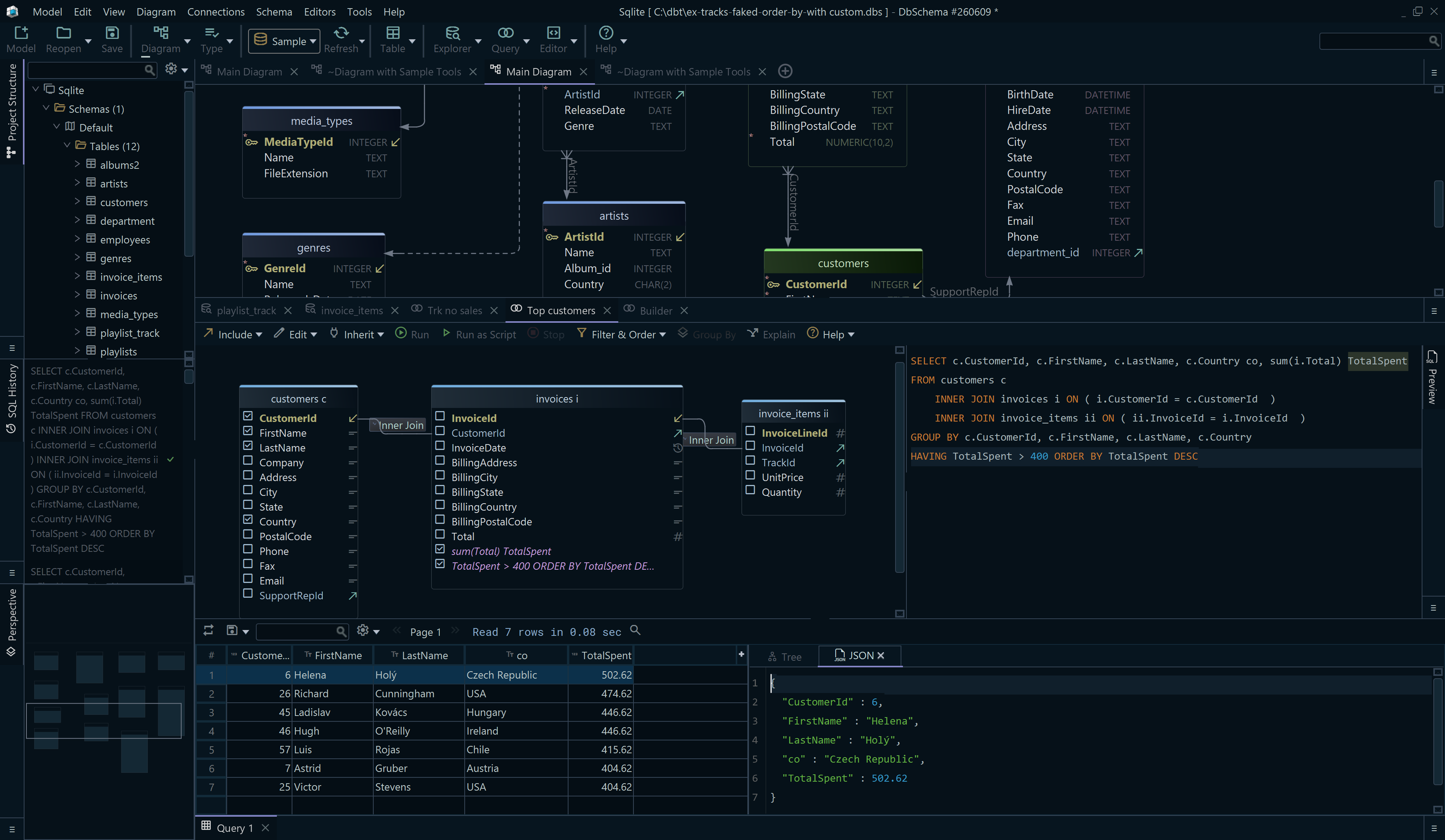
- To query the database, open the SQL Editor from the Editors menu.

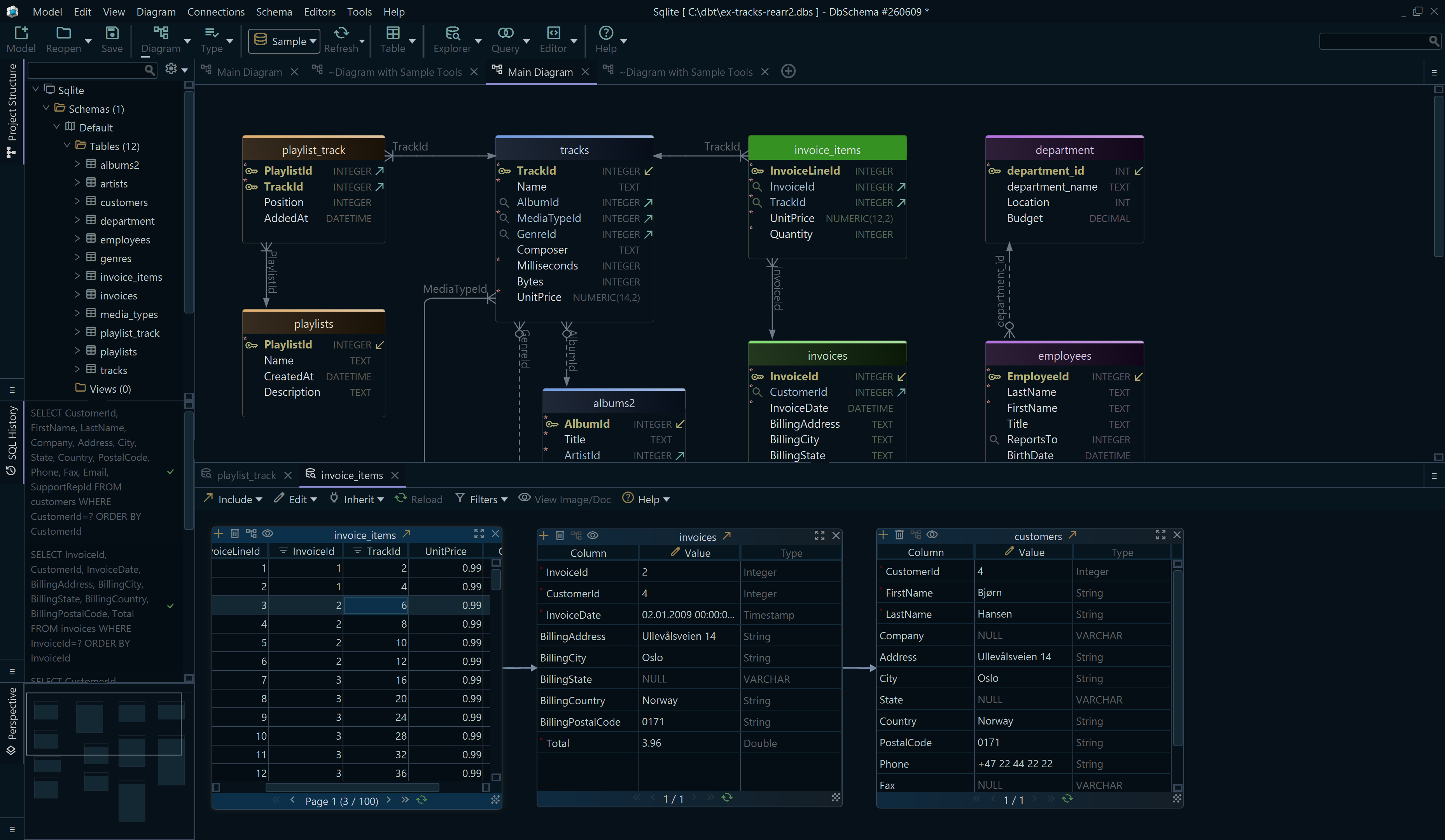
While DbSchema is connected, every table you add or change is executed against the live database at once and logged in the SQL History pane. Disconnected, the same changes go only into DbSchema's design model, which is separate from the database; when you reconnect, DbSchema lists the differences and you choose which of them to apply.

Create TestDB with the defaults while you try things out, and name the
files, their sizes and their growth for a database that will hold real data.
Download DbSchema, create your SQL Server database from the
Connection Dialog and design its first tables on the diagram in the free Community Edition, which
covers connecting, reverse-engineering, the diagrams and the SQL Editor. Saving the design to a
model file and synchronizing it with the database are in DbSchema Pro.
Sources
- SQL Server documentation: CREATE DATABASE (Transact-SQL)
- SQL Server documentation: Create a database
- SQL Server documentation: sqlcmd utility
- SQL Server documentation: model database
- SQL Server documentation: sys.master_files
- SQL Server documentation: Database engine errors 0 to 999
- SQL Server documentation: Database engine errors 1000 to 1999
- SSMS documentation: Connect and query SQL Server using SSMS
- SQL Server documentation: What is SQL Server on Linux?
- SQL Server documentation: Editions and supported features of SQL Server 2022
- SQL Server documentation: Editions and supported features of SQL Server 2025
- DbSchema documentation: Connect to Databases









