DbSchema Tool Presentation and Feature Overview
Get a quick tour of DbSchema features, including schema modeling, synchronization, documentation, and visual query tools.
On this page
What DbSchema Is and What It Does
DbSchema is a visual database design and management tool for SQL and NoSQL databases. It helps developers and database administrators model schemas, explore data, build queries, and generate interactive documentation. Using a database-independent offline model, it allows teams to design collaboratively, version control their schemas with Git, and safely synchronize changes across multiple environments without writing complex migration scripts.
The DbSchema Model
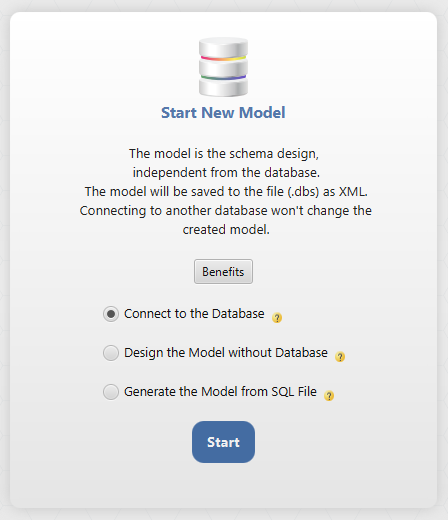
Using DbSchema you can design, query, and manage both SQL and NoSQL databases. DbSchema uses a local project file that lets you reverse-engineer an existing database or design a new one entirely offline. Because the design model is independent of the live database, you can connect later to deploy changes. Connecting, reverse-engineering, the interactive diagrams and the SQL Editor are in the free Community Edition; saving the model to a file is in Pro. For a deeper look at how this offline-first approach works, read our guide on the .dbs project file.
Schema Documentation
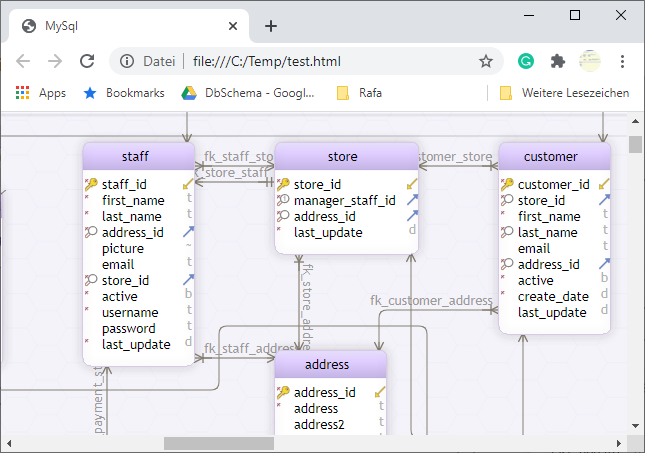
DbSchema allows you to add comments to any table or column and generate interactive HTML5 documentation with vector schema diagrams. These files can be shared with your team or hosted on any web server to provide an easily accessible data dictionary. Documentation export is a Pro edition feature. Learn more about sharing your schema designs in our interactive database documentation guide.
Schema Synchronization
Because DbSchema operates on a local model file, you can compare your offline design against a live database at any time. DbSchema's Synchronization Dialog highlights differences and lets you choose which changes to deploy or drop, generating the SQL migration script for you. Schema synchronization is in the Pro edition. Explore the full workflow in our schema synchronization documentation.
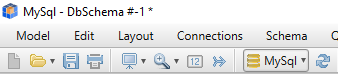
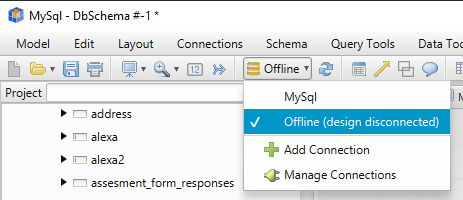
Clicking the connection combo we can choose to work disconnected from the database (offline).
Add a 'details' column to the table 'store'. While you are offline, the column will be added only to the DbSchema model, and not in the database. No statement will be created in the SQL history pane.
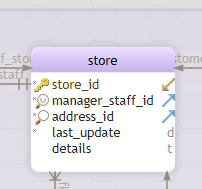
Press 'Refresh Schema from the Database'.

Choose to review the differences.
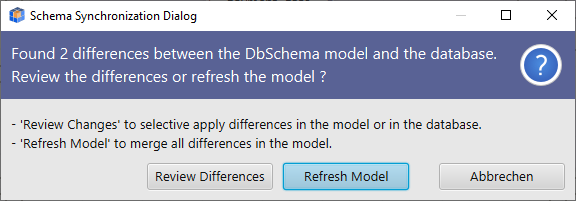
The Schema Synchronization dialog shows that the new 'details' column exists in the model, but not in the database. You can create it in the database or drop it from the model. For the database actions, tick the 'Generate Script' radio.
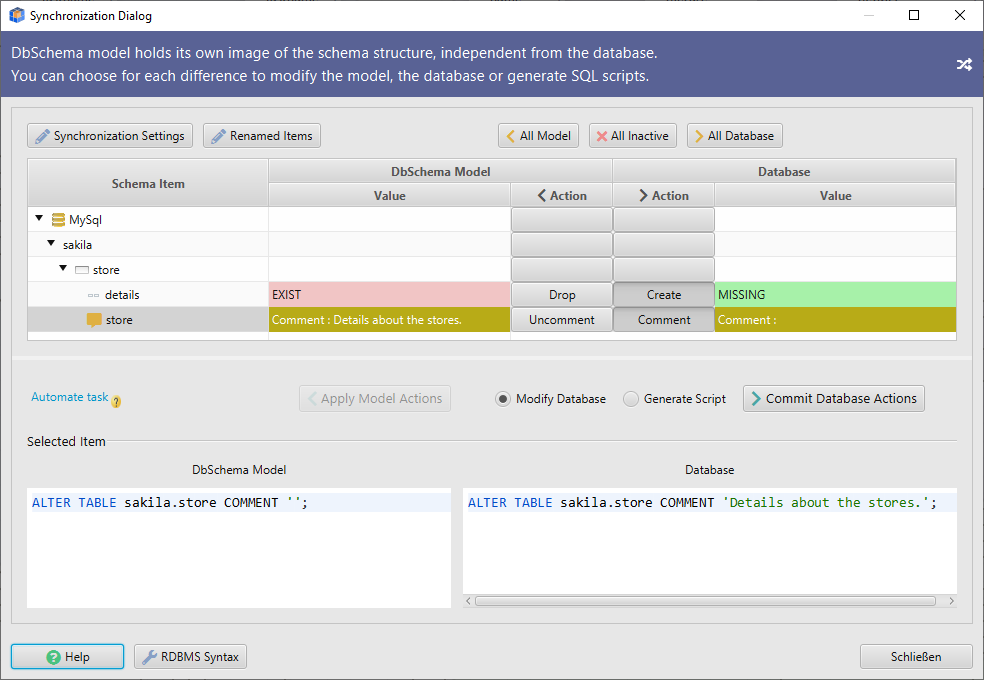
In the same way, we can connect to any other database, compare and deploy the model on the database. From the Schema menu, we can choose to compare the actual model with other model files and generate the SQL migration script.
From the menu, we can save the current model to file. The next time you start DbSchema, the Welcome Screen's Reopen Project from File brings that model back with its diagrams and editor state.
The model file uses the XML format and can be open with any text editor.
DbSchema Tools
DbSchema includes these tools, all in the Pro edition except the SQL Editor, which is in the free Community Edition:
- Relational Data Editor for visualizing data from multiple tables
- Visual Query Builder for composing SQL queries with the mouse
- SQL Editor
- Random Data Generator
- Data Importer
Relational Data Editor
The Relational Data Editor visualizes data from multiple tables simultaneously, allowing you to cascade through foreign keys or virtual foreign keys without writing complex queries. It's a fast way to explore hierarchical data and test relationships. See our virtual foreign keys guide for more on how this works.
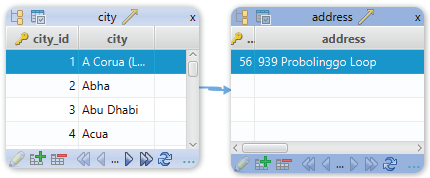
Selecting a record in one table will show the matching records in the cascading tables.
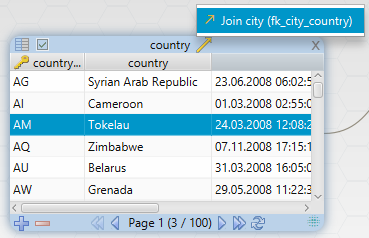
Start the Data Explorer from any table header right-click menu, then cascade into further tables by clicking the foreign key icon.
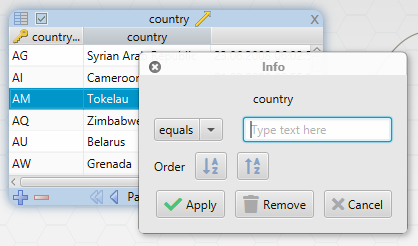
Filter the table data from any column right-click pop-up.
The Data Explorer is saved to the model file, so it comes back when you reopen that model.
Visual Query Builder
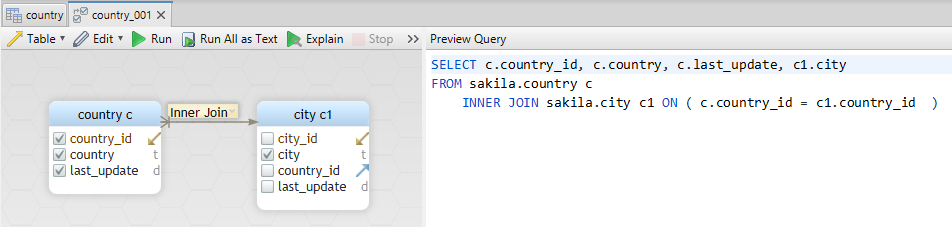
The Visual Query Builder lets you compose complex SQL queries using a drag-and-drop interface. You can join tables visually, select columns, and add filters or aggregations without manually typing SQL syntax, making data extraction faster and less prone to syntax errors. Read the Query Builder documentation to see it in action.
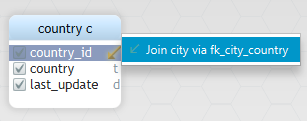
You can join tables using foreign keys or virtual foreign keys. Click the foreign key icon to add further tables to the editor.
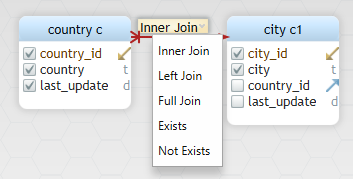
Choose the columns to include in the result by ticking the column checkboxes. Click the join line to choose different join types.
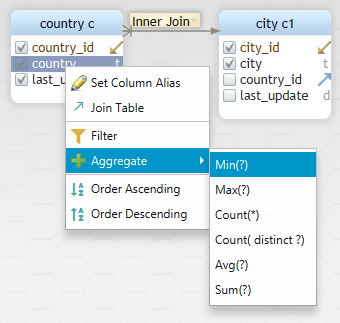
Right-clicking columns we can set filters or add aggregate functions to the query. This will transform the query into a GROUP BY query.
SQL Editor
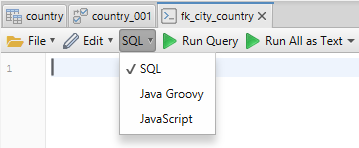
For advanced operations, the built-in SQL Editor provides an environment to run database queries or custom scripts. It also supports Java Groovy scripts for automating repetitive tasks via the DbSchema API. Learn more in our database automation guide.
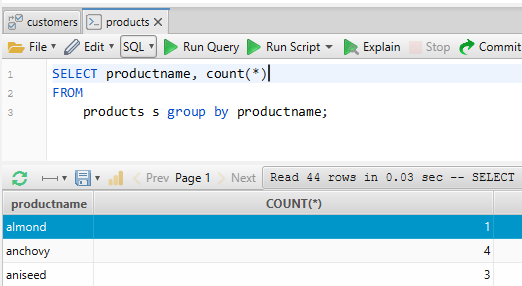
The editor can execute also Java Groovy scripts, with access to the DbSchema API. These scripts can be used for DbSchema automation. See the Help / Code Samples.
Random Data Generator
When testing applications or query performance, you need reliable sample data. The Random Data Generator fills your tables with test data using customizable patterns, sequences, and reverse regular expressions to mimic real-world datasets.
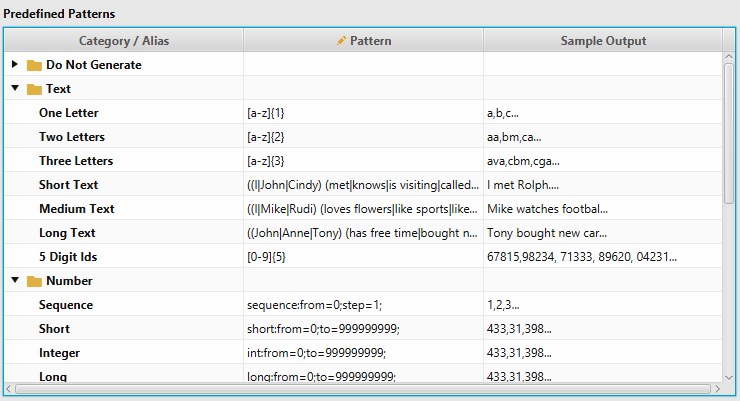
The generator is using patterns, which can generate numbers in a sequence, random numbers, data from files or text data using reverse regular expressions.
Where to Go Next
To get the most out of DbSchema's design-first workflow, start by exploring how the offline model works. Check out our guides on the .dbs project file, how to manage changes with schema synchronization, or how to speed up reporting with the visual query builder.
When you want to see this on your own schema, download DbSchema and reverse-engineer a database into a diagram in the free Community Edition. The Pro edition covers the rest of this page: saving the model to a file, HTML5 documentation, schema synchronization, the Relational Data Editor, the Visual Query Builder, the Random Data Generator and the Data Importer. A new installation starts with a 15-day Architect trial, so you can try all of it first.
See your own schema as a diagram
DbSchema reverse-engineers SQL and NoSQL databases into an editable model, keeps the design in a Git-friendly .dbs file, and exports interactive HTML5 documentation — free Community Edition included.









