How to Document a MySQL Database Schema in 2026
For the person who owns a MySQL schema and has to hand it to colleagues who will never open a database client.
On this page

A colleague asks what one of the numeric status codes in a table stands for, and the only person who knows is away for two weeks. The answer belongs in the schema itself, where MySQL keeps a comment on every table and column, and in a document DbSchema generates from it as interactive HTML5, PDF or Markdown. Both are regenerated when the schema moves, so neither can drift into fiction the way a wiki page does.
Descriptions and tags on the tables and columns
MySQL 8.4 stores the description next to the thing it describes. A table takes a comment of up to 2048 characters and a column one of up to 1024:
CREATE TABLE subscription (
  subscription_id int PRIMARY KEY COMMENT 'Generated by the billing system',
  status tinyint NOT NULL COMMENT '1 active, 2 paused, 3 cancelled'
) COMMENT 'One row per paid plan, not per customer';
SHOW CREATE TABLE prints them back, and so does the data dictionary, which is the form you can join against and export:
SELECT column_name, column_comment
FROM information_schema.columns
WHERE table_schema = 'shop' AND table_name = 'subscription'
ORDER BY ordinal_position;
| column_name | column_comment |
|---|---|
| subscription_id | Generated by the billing system |
| status | 1 active, 2 paused, 3 cancelled |
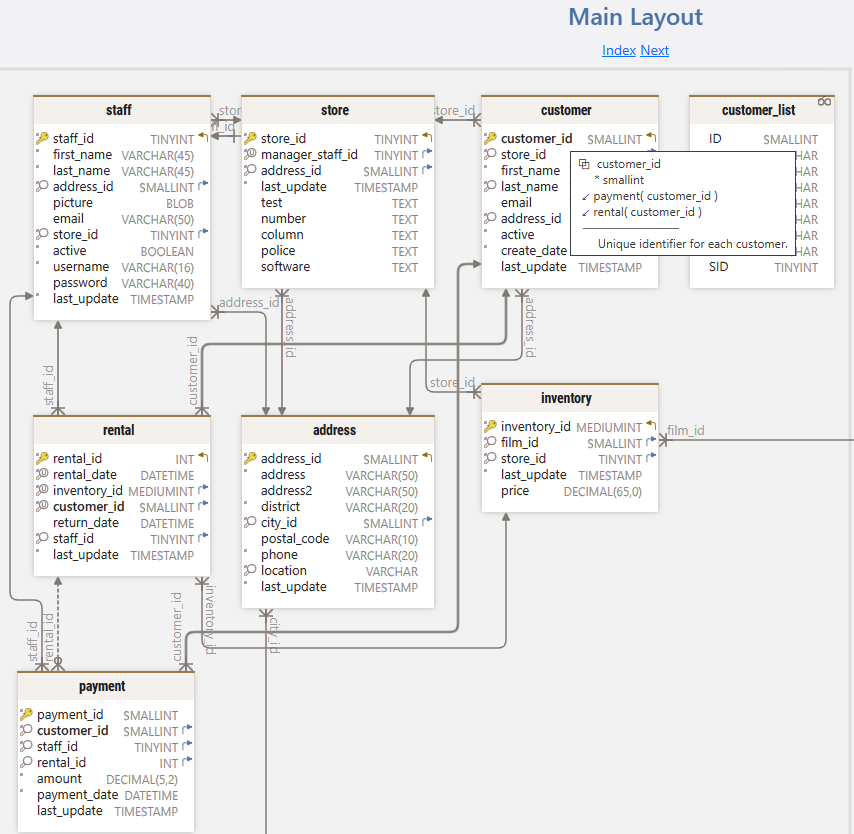
In DbSchema you write the same text without the DDL. Double-click a table header in the diagram to open the Table Dialog and add the comments there, or type into the Description field of a table or column. That text is stored in the .dbs design model file, appears in every documentation format DbSchema generates, and shows up in the HTML5 output as a mouse-over tooltip on the column.
Beside free text, DbSchema attaches comment tags to a table or a column: key-value pairs for the owner of a table, a sensitivity level, or a deprecation status. Tags appear in the generated documentation and are readable from Automation Scripts, so a script can list every table tagged with one owner.

The diagram, the views and the stored procedures
Connect DbSchema to the MySQL server and it reverse-engineers the schema into diagrams with the foreign key lines already drawn. One project file holds many diagrams that share the same schema definition, each with its own layout and its own set of visible tables, which is how a schema of a few hundred tables becomes a page for orders, a page for customers and a page for reporting instead of one unreadable wall. Turn on Show Column Types from the Diagram menu when the reader needs the types, and switch the notation between Default, Barker and Simple from the same menu.

Where MySQL declares no foreign key, drag a column onto the matching column in another table to create a virtual foreign key. It is drawn like any other relationship line and saved in the project file, and it changes nothing in the database.
Business logic needs its own line of explanation, because a reader who sees only tables cannot tell what writes to them. The Project Structure panel on the left lists views, procedures and constraints beside the tables, and DbSchema reverse-engineers triggers, procedures and functions with per-database queries, since the standard JDBC API does not expose them. On the MySQL side a routine carries a comment of its own, a MySQL extension that SHOW CREATE PROCEDURE prints:
CREATE PROCEDURE expire_subscriptions()
  COMMENT 'Nightly job, sets status 3 on subscriptions past their end date'
  UPDATE subscription SET status = 3 WHERE end_date < CURDATE();

Export to HTML5, PDF or Markdown
In DbSchema, choose Diagram → Export HTML5 or PDF Documentation. The dialog asks for three things: the format, the diagrams to include, and the content. The diagram selection takes the current diagram, all open diagrams, a selection, or every diagram tagged documentation, where the tag value sets the order the diagrams appear in. The content selection is the list of schema elements that make it into the file: tables, columns, foreign keys, indexes and comments.
HTML5 is the format most readers want. It opens in any browser with no server behind it, carries the diagram as a vector image, and gives you a searchable table list: click a table to jump to its definition, hover a column to read its description.
PDF produces the printable version for a review or an audit, with the diagram images and every column description. For Russian, Chinese or Japanese text, switch on Embed Unicode Font in the PDF options first. Markdown writes each table as a section with its columns, types and descriptions, which is the format to commit next to the code or paste into a wiki.
Because the HTML5 output is a set of plain files, deployment is a copy. Put the folder on an internal web server and give the department a URL, or hand the files to someone who has no access to the database at all and never will. When the schema changes often, generate the documentation from a Groovy script through the Automation Scripts API and let the build do it on every commit.
Keeping the documentation level with the database
Documentation stops being read the moment it disagrees with the server, so the refresh matters more than the export. Click Refresh in the toolbar, or choose Schema → Refresh Schema from Database, and DbSchema pulls the current state of the MySQL schema into the model and prompts you when it finds differences. Schema → Compare Model with Database lists what differs, object by object: added, removed and modified tables, columns, indexes and foreign keys. For each difference you choose to update the model, push the change to the database, or skip it.
Two of those choices go in opposite directions, and it is worth being deliberate about which one you pick. Refreshing writes to the design model file only. Schema → Synchronize Model with Database generates the SQL that changes the live MySQL database, and nothing reaches the server until you run it.

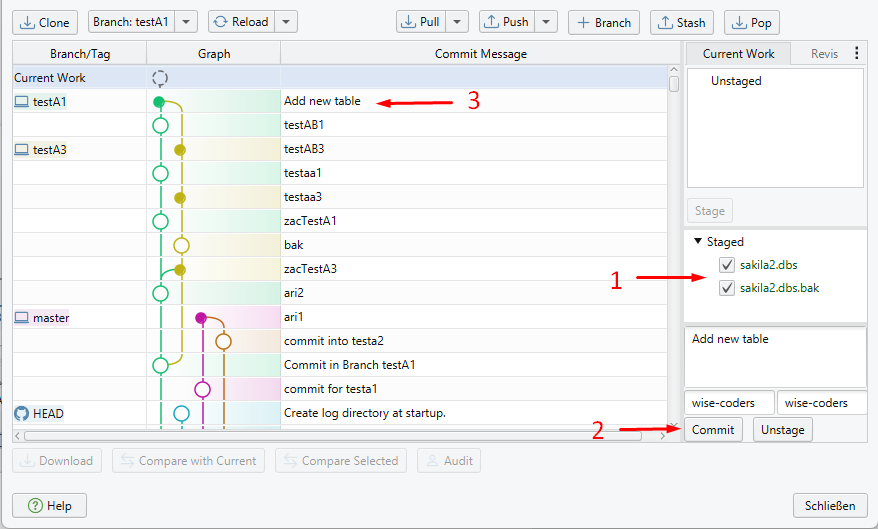
The model file is XML, so it belongs in the same repository as the code that queries the database. Open Model → Git — Collaborative Design to clone a repository, stage the changed model, commit it with a message and push it. Pull brings in what a teammate designed, and Compare with Current opens the Synchronization Dialog on their version, so you read the schema change as a list of differences before any of it reaches your database.
Sample rows next to the structure
Column comments explain a column; a handful of rows shows it. Open Data Tools → Generate Random Data, or right-click a table header and choose Generate Random Data, to fill the tables of a diagram with test values. Every column gets a pattern, the patterns are saved in the model file, and you reorder the tables in the dialog so a parent is filled before the table that references it. When you click Generate, DbSchema asks whether to drop the existing data first. Do not do this on a production database.

To read those rows the way the schema connects them, open Editors → New Relational Data Editor, or right-click a table header and choose Open in Relational Data Editor. Click a row in the parent pane and every child pane refilters to the rows that match it, as many levels deep as the foreign keys go. A reader learns more from one order with its customer and its lines beside it than from three paragraphs about the relationship, and the editor works over virtual foreign keys as well as declared ones.

The HTML5, PDF and Markdown export, the schema synchronization that Compare and Synchronize Model with Database drive, the Data Generator and the Relational Data Editor are Pro edition features; the free Community Edition connects to MySQL, reverse-engineers it and draws the diagrams. Download DbSchema at https://dbschema.com/download.html, reverse-engineer your MySQL schema, write the description of the one table nobody understands, and export the HTML5 file from that same model. The DbSchema MySQL page covers connecting to the server.









