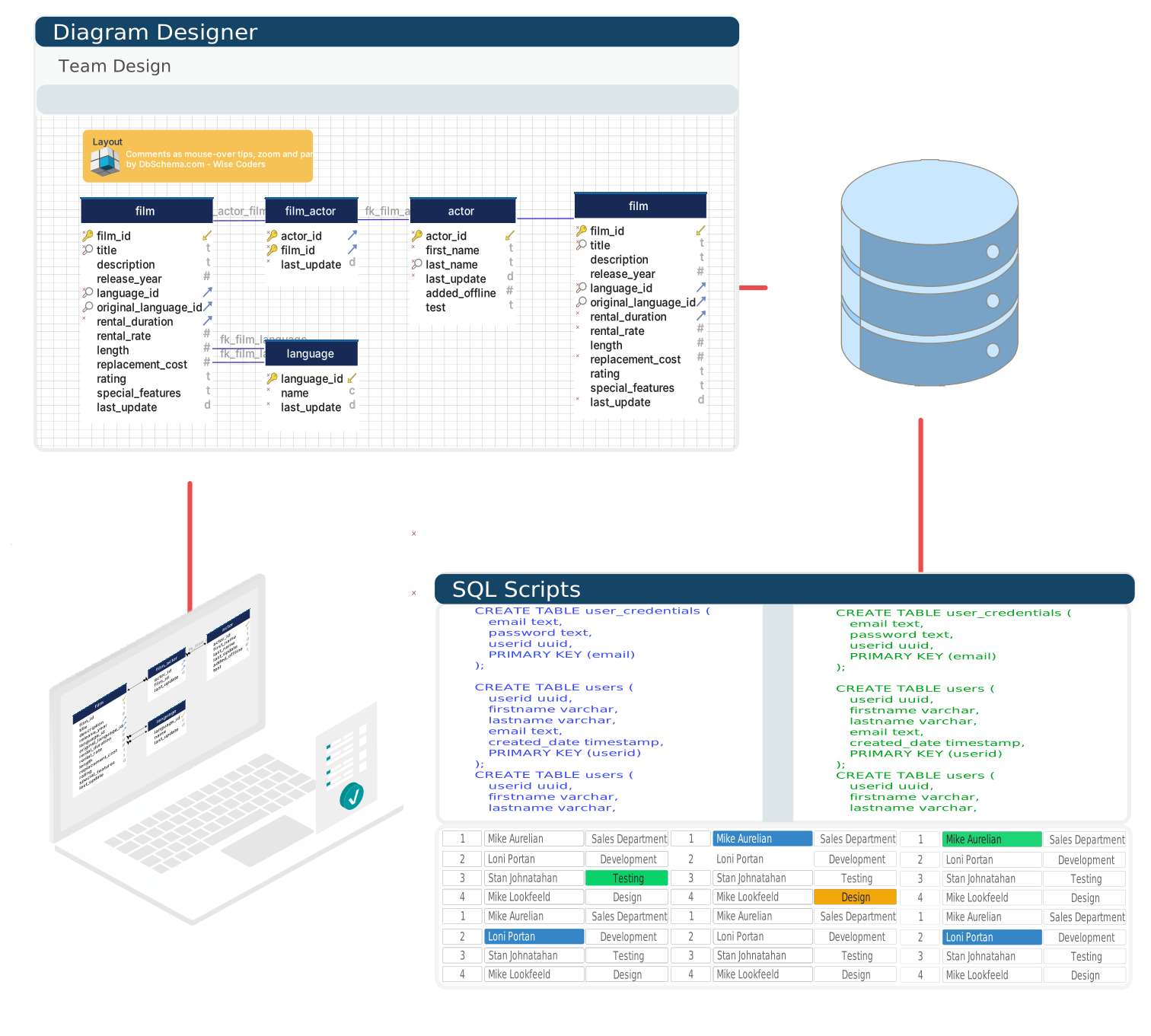

DbSchema lets you design, manage, and document Microsoft Dataverse databases. Create ER diagrams, define tables and columns, and generate SQL scripts - with or without a live database connection.
Use Git to share the design, compare it with the Microsoft Dataverse database, and deploy changes. DbSchema also includes a data editor, query builder, and HTML5 documentation - everything you need in one tool.
Download DbSchema Download Microsoft Dataverse JDBC Driver
Microsoft Dataverse underlies Power Apps, Power Automate, and Dynamics 365, storing application data as tables with relationships managed by the Power Platform. Dataverse exposes a Tabular Data Stream (TDS) endpoint that accepts read-only T-SQL queries, making it accessible to SQL-based tooling without requiring Power Platform SDK access. DbSchema connects to Dataverse via a SQL Server-compatible JDBC driver and renders the entity model as an interactive ER diagram for Power Platform architects and Dynamics 365 developers.
DbSchema connects to the Dataverse TDS endpoint and reads table definitions, column types, and relationships from the Dataverse metadata. The resulting entity diagram maps standard Dataverse tables alongside custom tables, making it easier to understand the data model backing a Power Apps solution or Dynamics 365 module.
DbSchema's query builder lets you construct T-SQL queries against Dataverse tables using a graphical interface, selecting columns and applying filters without writing SQL directly. This is practical for Power Platform developers who need to inspect Dataverse data without manually constructing T-SQL against the TDS endpoint.
DbSchema generates HTML schema documentation from the Dataverse entity model, covering table structures, column definitions, and relationships. For Power Platform implementation teams, this documentation provides a structured reference for the data layer underlying Power Apps and Dynamics 365 customizations, useful for handoffs and solution reviews.
Dataverse exposes a TDS endpoint at port 5558. The JDBC URL format is:
jdbc:sqlserver://org.crm.dynamics.com:5558, where org is your environment's
organization name. You must first enable the TDS endpoint in your Power Platform
environment settings under Settings > Features > TDS endpoint. Authenticate using an Azure AD
account that has the Dataverse Security Role assigned. The TDS endpoint supports read-only T-SQL
queries against Dataverse tables; DDL statements are not supported through this interface.