How to Document a Postgres Database
For the developer or DBA who owns a Postgres database and has to explain it to people who never open psql.
On this page
A Postgres database outlives the people who built it, and the reason a column exists leaves with the person who added it. Document the database in two layers: SQL COMMENT statements applied with psql -f, then one interactive HTML5 file exported from DbSchema. The .sql file keeps the descriptions under version control with the schema. The HTML5 file carries the same descriptions beside the diagram, and opens in any browser.
Document a Postgres database in four steps
- Write the descriptions.
COMMENT ON TABLEandCOMMENT ON COLUMNstatements go into a.sqlfile that sits next to your migrations. - Apply the file. Run it with
psql -fagainst the database, in a single transaction, so the comments land as a unit. - Connect DbSchema to the database. DbSchema reverse-engineers the schema and reads the comments already stored in it.
- Export the documentation. DbSchema Pro writes an interactive HTML5 file that holds the diagram, the tables and every description, and it opens in any browser with no license needed to read it.
Steps 1 and 2 need nothing but psql, and the next two sections cover them in full. Steps 3 and 4 add the diagram and a single file you can hand to a business analyst. For a survey of the tools that do this job, read the comparison of database documentation tools. For a model that has no database behind it yet, start from logical design documentation instead.
Why the descriptions belong in the database
A Postgres database is read by more people than write to it. Developers query it, analysts build reports on it, QA tests against it, and a new hire has to find their way around it in the first week.
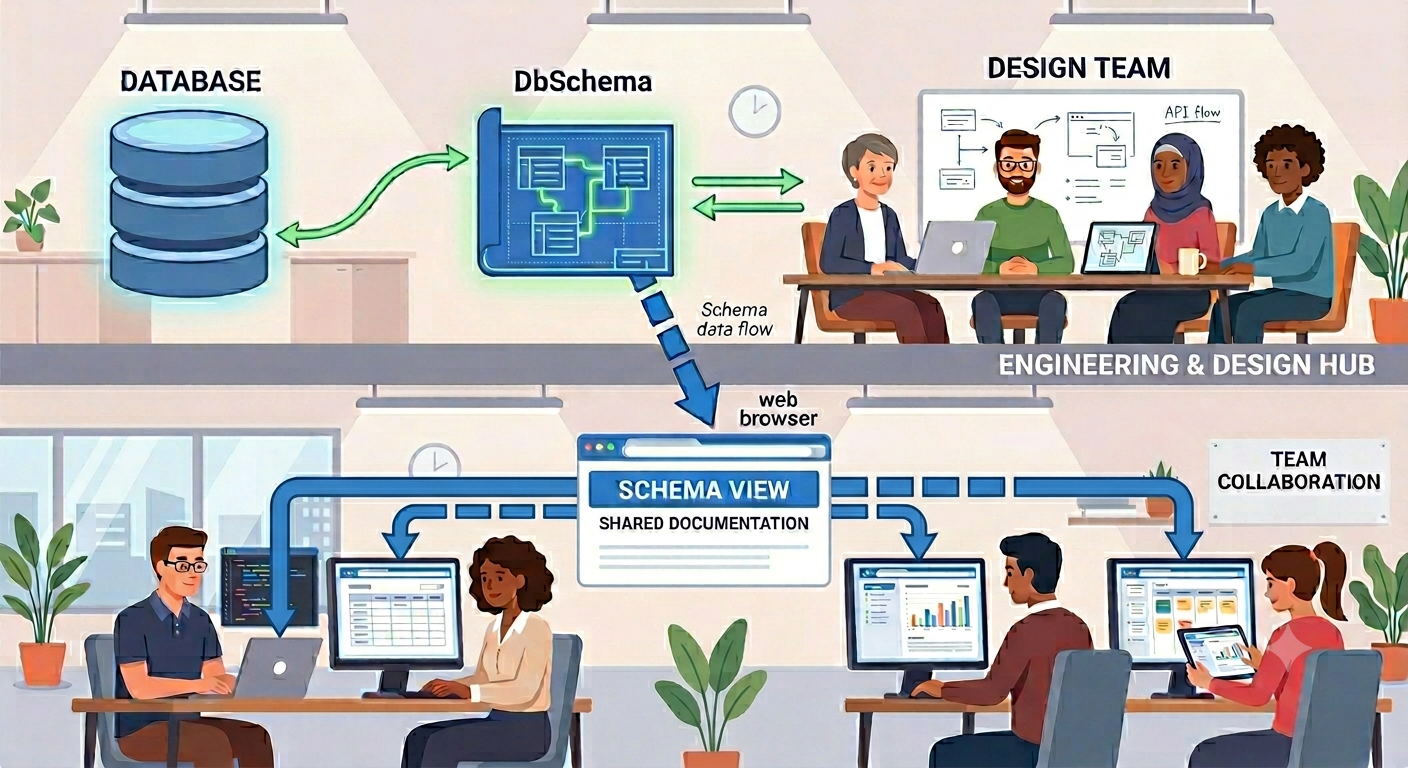
With nothing written down, all of that understanding sits in people's heads and leaves the company when they do. A description stored on the table or the column is in front of the next person by default, because every client that reads the Postgres catalog can show it. The same descriptions are what DbSchema exports later, so the work is done once.
Written descriptions also make one class of mistake less likely. A column whose purpose is recorded is a column a colleague thinks twice about dropping. A business analyst who can read what a table holds stops having to ask you.
Generating documentation with psql
The examples run on PostgreSQL 18 against a small sports database with three tables:
CREATE TABLE teams (
  team_id int PRIMARY KEY,
  name    text NOT NULL,
  city    text
);

CREATE TABLE players (
  player_id int PRIMARY KEY,
  team_id   int NOT NULL REFERENCES teams,
  name      text NOT NULL,
  position  text
);

CREATE TABLE matches (
  match_id   int PRIMARY KEY,
  home_team  int NOT NULL REFERENCES teams,
  away_team  int NOT NULL REFERENCES teams,
  match_date date NOT NULL
);
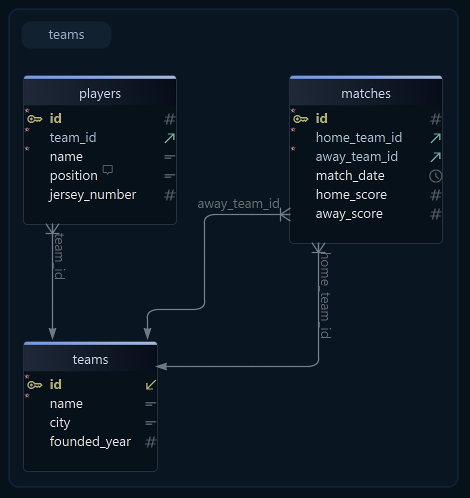
PostgreSQL attaches a description to a database object with the COMMENT command[1]. Keep those statements in a .sql file and the descriptions are reviewed and versioned like the migrations beside them, instead of being typed once into a tool and lost.
-- documentation.sql, kept in version control next to the migrations.
COMMENT ON SCHEMA public IS 'Sports league: teams, players, matches';

COMMENT ON TABLE teams   IS 'Sports teams participating in the league';
COMMENT ON TABLE players IS 'Players registered with a team';
COMMENT ON TABLE matches IS 'Matches scheduled or played between two teams';

COMMENT ON COLUMN teams.city       IS 'City the club plays in';
COMMENT ON COLUMN players.team_id  IS 'Team the player is registered with';
COMMENT ON COLUMN players.position IS 'Player role on the field, e.g. goalkeeper, defender';
Views, indexes, constraints, functions and sequences take the same command. Re-running the file is safe: PostgreSQL stores one comment string per object, so a second COMMENT on the same object replaces the first. Setting the text to NULL or to an empty string removes the description, and dropping the object drops its comment with it.
Apply the file from a terminal:
psql -d sports_db -v ON_ERROR_STOP=1 --single-transaction -f documentation.sql
ON_ERROR_STOP=1 together with --single-transaction means either every description lands or none of them does. psql prints the tag of each statement it runs, so seven COMMENT lines between BEGIN and COMMIT say the whole file went through:
BEGIN
COMMENT
COMMENT
COMMENT
COMMENT
COMMENT
COMMENT
COMMENT
COMMIT
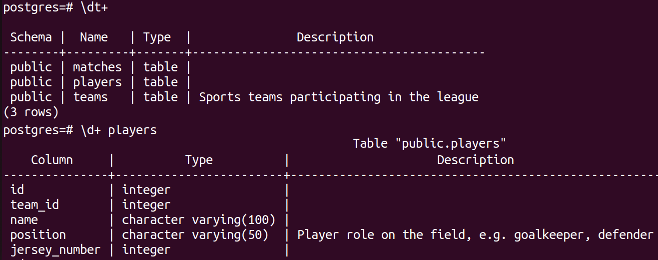
The same psql call reads the descriptions back, which is the fastest way to confirm what is now stored:
psql -d sports_db -c '\dt+'          # every table, with its description
psql -d sports_db -c '\d+ players'   # one table, with a description per column
\dt lists the tables; the + adds each table's persistence, its size on disk and its description[2]. \d+ players prints the comment beside each column of that one table. A single -c accepts one backslash command, so the two backslash commands go in two separate psql calls. The screenshot below has had columns removed so it fits a browser window; both commands print more columns than it shows.
Follow the same process for the rest of the tables and the database is documented. The descriptions now live inside the database itself, which is where they belong. That location is also what makes them hard to hand around: reading them means connecting with psql and running a command per table, with no diagram and no overview. A business analyst would need database access and psql knowledge to read one sentence about one column.
Interactive HTML5 documentation with DbSchema
DbSchema generates the documentation for the same database as an interactive HTML5 page, contained in one file.

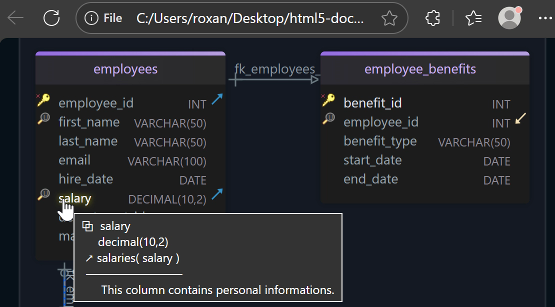
The file opens in any browser with no server, no plugins and no DbSchema license needed to read it, so you can mail it or put it on an internal web server and send the team a link. Hovering over a table or a column shows its description as a tooltip, and clicking one jumps to its full entry in the page. The diagram inside it is an SVG image, so it stays sharp at any zoom and the file stays far smaller than a page of PNG screenshots.
The description written earlier on players.position needs no second pass: DbSchema picks it up when it reverse-engineers the database and carries it into the exported page. Work already done in psql is work you keep.
Connect DbSchema to Postgres and describe tables in the diagram

Open DbSchema, choose Connect to Database and pick PostgreSQL as the database type. The PostgreSQL JDBC driver is downloaded for you, so there is nothing to install by hand. Give the connection a name, enter the host, port, database and credentials on the Connection tab, and click Connect. DbSchema reverse-engineers the schema and draws teams, players and matches with their columns and foreign keys.

Double-click a table header in the DbSchema diagram to open the Table Dialog, or double-click a column, and type the text in the Description field. A description entered here is the same kind of description as COMMENT ON, written without SQL, and a small callout icon on the column shows that one is present. Descriptions typed in the diagram go into the .dbs model file; they reach the database when you synchronize the model with it.
Export the documentation to HTML5, PDF or Markdown

Once the descriptions are in place, open Diagram → Export HTML5 or PDF Documentation in DbSchema. The dialog asks for three things: the format, the diagrams to include, and which kinds of object to cover, from tables and columns to foreign keys and indexes. Pick HTML5, choose a file name, and export.
The same dialog produces the other two formats. PDF is a printable report for an audit or a formal review, and its options carry an Embed Unicode Font setting for descriptions written outside the Latin alphabet.
Markdown writes each table as a section with its columns, types and descriptions in a text table, which is the format to commit next to the code in a GitHub repository or paste into a wiki. All three are covered side by side in the guide to generating database documentation.
Using multiple diagrams in one project
Diagrams in DbSchema are not one per project. Add another from the Diagram menu or with the + tab above the canvas, then drag onto it the tables it should carry. One diagram can hold all three tables as an overview while a second shows only teams and players, and a table that belongs on both sits on both, as the diagram page describes.

That is what makes the export controllable. The documentation dialog exports the current diagram, all open diagrams, or the ones you select, so a page for the reporting team can leave out the tables they never touch. You can also put several diagrams in the same HTML5 file, which is the usual choice once a schema is too large to read as one picture.

Documenting a Postgres database starts with COMMENT ON TABLE and COMMENT ON COLUMN applied from a file with psql -f, and DbSchema turns those same descriptions into a diagram-based document the rest of the team can open. A second worked example on Postgres is in document a PostgreSQL schema. Download DbSchema, connect it to your own Postgres database, and export the HTML5 file: connecting and reverse-engineering are in the free Community Edition, the HTML5, PDF and Markdown documentation is in the Pro edition, and the Architect trial runs 15 days.
Sources
Turn your Postgres comments into shareable documentation
DbSchema reverse-engineers your PostgreSQL database, picks up the COMMENT descriptions already stored in it, and exports the diagram and every description as one interactive HTML5 file, a PDF or a Markdown file. Documentation export is in the Pro edition, and the Architect trial runs 15 days.