MySQL CREATE DATABASE Guide for Beginners
For someone who has just installed MySQL and needs a database to work in; the client output is shown for every step.
On this page
You have MySQL running and nowhere to put your tables yet. One statement fixes that, typed at the mysql> prompt once you are logged in:
CREATE DATABASE mydatabase;
The commands below are for MySQL 8.4.
Log in to the mysql client
mysql -u root -p
Enter password:
The -u names the account and -p makes mysql ask for its password, which lands you at the mysql> prompt. The MySQL manual says the password "is not displayed as you enter it", so the line stays blank after the colon while you type. Do not write the password on the command line after -p either, because it is then visible to anyone who can list the running processes on the machine.
Create the database
CREATE DATABASE takes a name and, optionally, the character set and collation the new database defaults to:
CREATE {DATABASE | SCHEMA} [IF NOT EXISTS] db_name
    [create_option] ...

create_option: [DEFAULT] {
    CHARACTER SET [=] charset_name
  | COLLATE [=] collation_name
  | ENCRYPTION [=] {'Y' | 'N'}
}
CREATE SCHEMA is a synonym for the same statement, so the two spellings do the same thing. The account you logged in with needs the CREATE privilege for the database, which the root account has and an account just made with CREATE USER does not until someone grants it.
Run the statement a second time and MySQL rejects it, because an error occurs if the database exists and you did not specify IF NOT EXISTS. In a script that may run more than once, ask for the database only when it is missing:
CREATE DATABASE IF NOT EXISTS mydatabase;
Whether mydatabase and MyDatabase are two databases or one depends on the machine. MySQL ties identifier case sensitivity to the file system the database directory sits on: names "are not case-sensitive in Windows, but are case-sensitive in most varieties of Unix". The exception the manual names is macOS, because its default file system is not case-sensitive. Pick one spelling and keep it, because the queries you write next have to match it.
Check that it exists, then select it
SHOW DATABASES;
The statement lists the databases on the MySQL server host, and the new one appears among them. The list is your view of the server rather than the whole server: you see only the databases you hold some privilege on, unless your account has the global SHOW DATABASES privilege.
Creating a database does not start using it. USE does that, and mysql confirms it:
USE mydatabase;
Database changed
Every statement after that runs against mydatabase unless it names another database explicitly. When you lose track of which one is selected, ask:
SELECT DATABASE();
| DATABASE() |
|---|
| mydatabase |
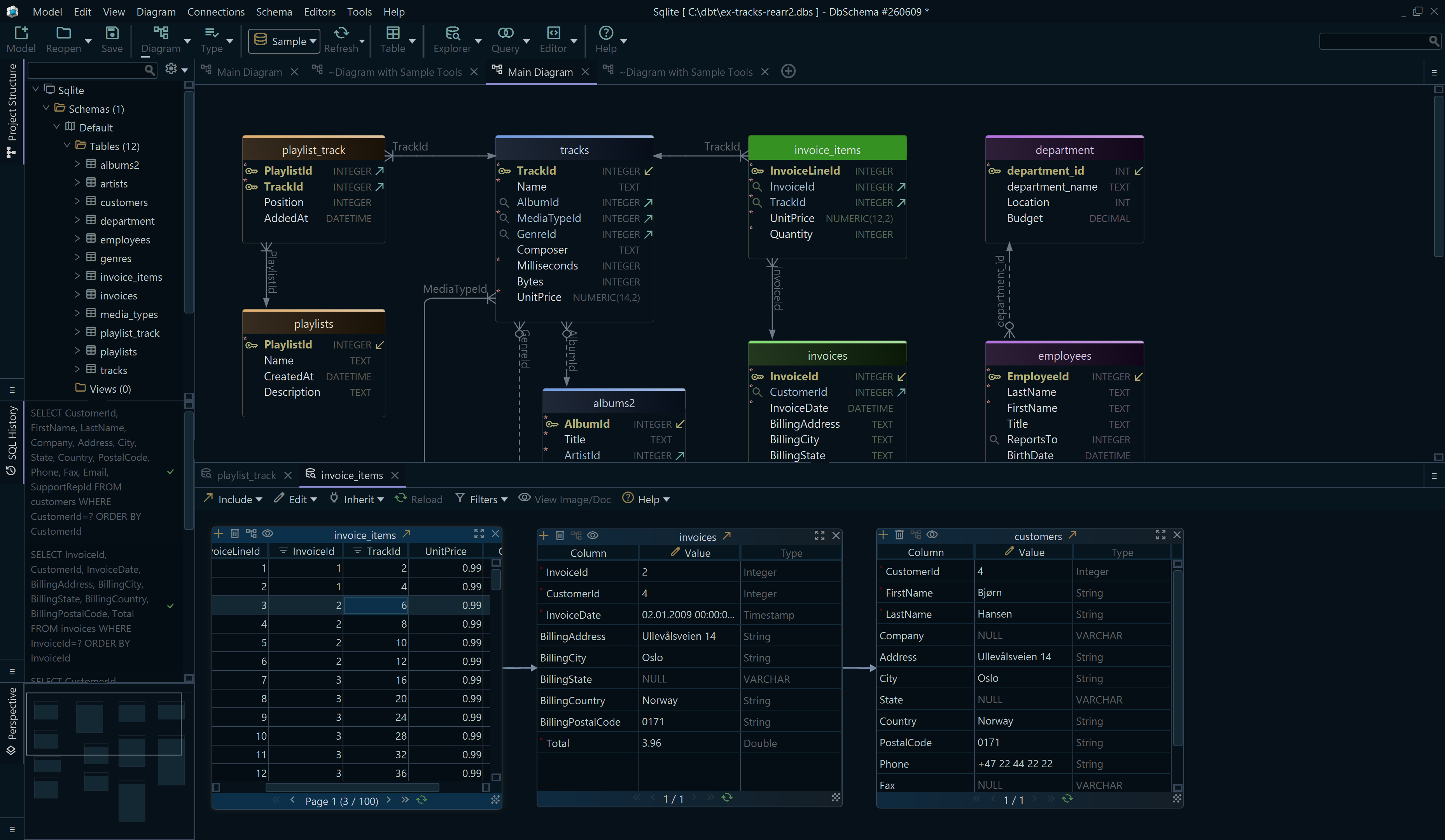
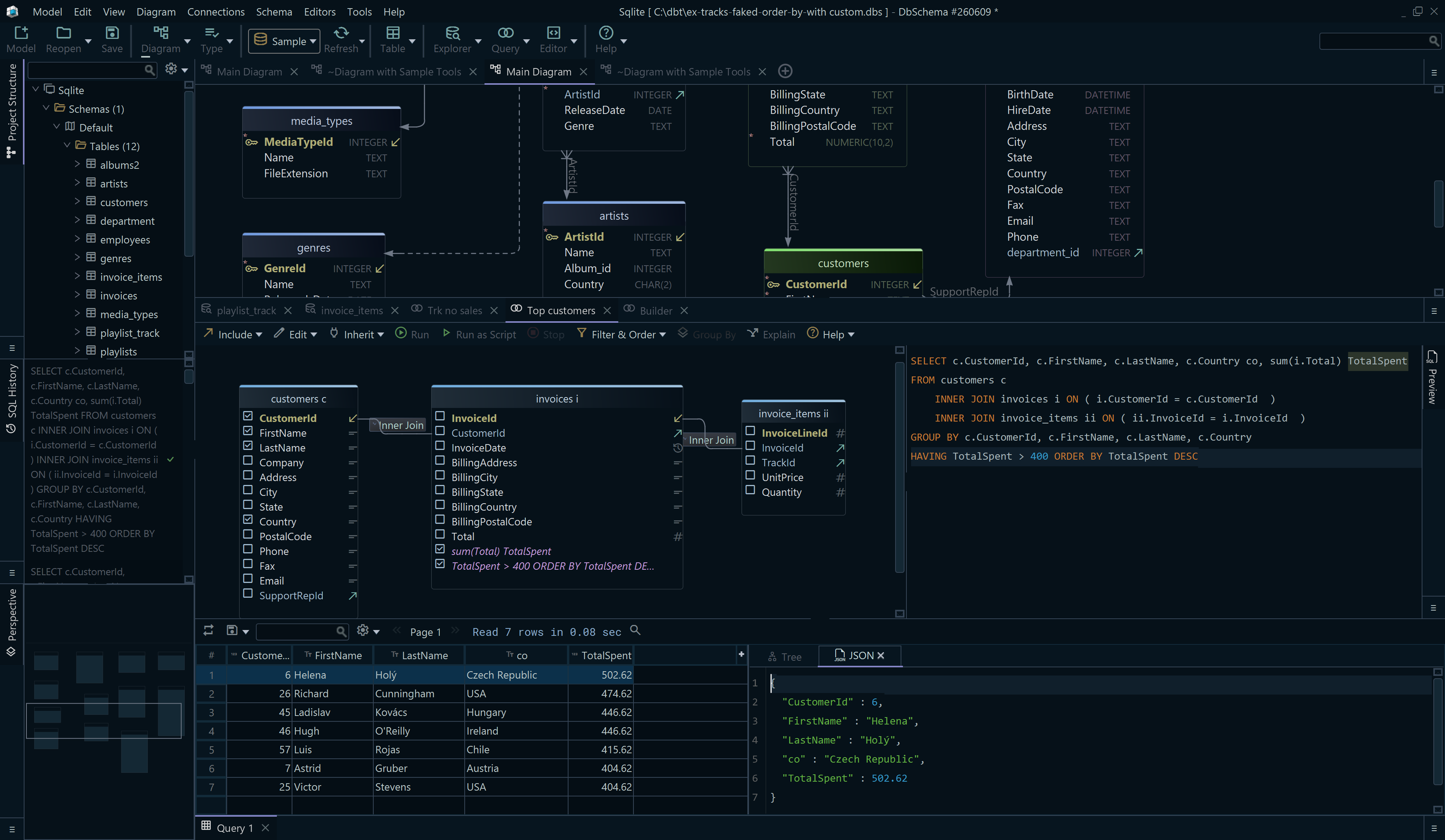

Create a MySQL database in DbSchema
DbSchema is a MySQL client and visual designer that creates the database from the same dialog you use to connect, which saves the trip to the command line when you are setting up a new project.

Choose MySQL
Click Connect to Database and pick MySql from the Choose Your Database list. DbSchema downloads the JDBC driver for it and opens the Connection Dialog already configured for MySQL.

Fill in the server and the account
Under Server Location, keep This computer, default port when MySQL runs on the same machine, or switch to Remote computer or custom port and give the host. Enter the Database User and Password, and tick Remember to store the password locally.

Create the database from the dialog
Next to the Database field, Create New creates a database on the server. Name it, confirm, and it is there: that step runs against MySQL itself, exactly as the CREATE DATABASE statement above does. Pick the new database, click Connect, and DbSchema reverse-engineers it into a diagram, which is a model kept in the project file on your computer.
Download DbSchema at https://dbschema.com/download.html, point the Connection Dialog at your MySQL server, and create the next database from there instead of typing the statement. Connecting, reverse-engineering and the diagrams are in the free Community Edition.









