MongoDB Atlas ER Diagram Designer | DbSchema
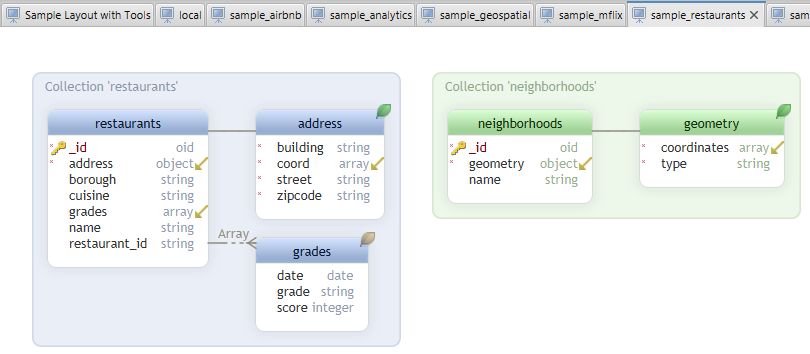
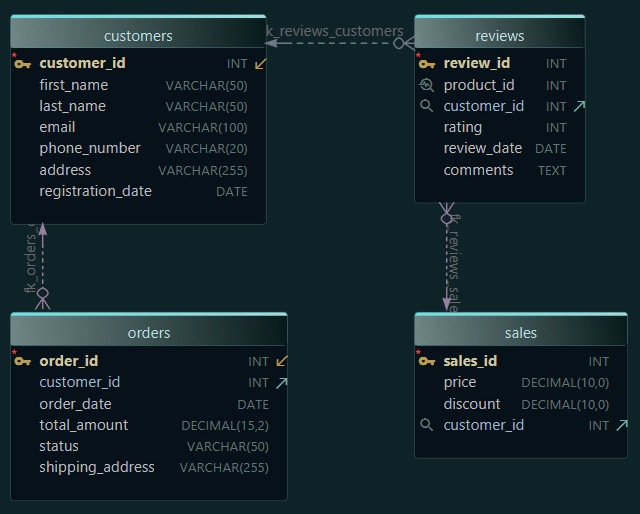
In this article you will learn how to connect to MongoDB Atlas and design the database visually, using diagrams.
You can create a free MongoDB Atlas database by logging in to the MongoDB Cloud Console. There you can create your own cloud database.
Follow the steps below to create the cluster.
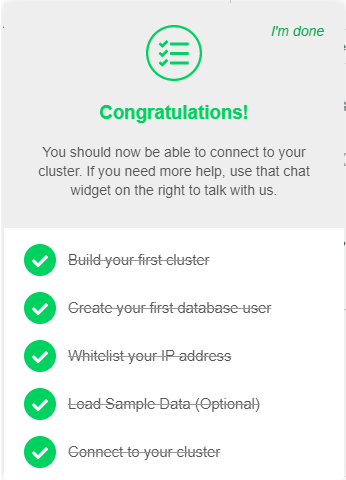
Create the cluster.
This can be a shared cluster, for free.
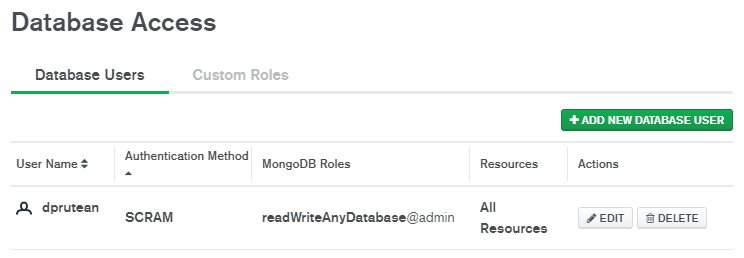
Create the database user
You will use this user to connect to the database. Here I have created a user 'dprutean'.
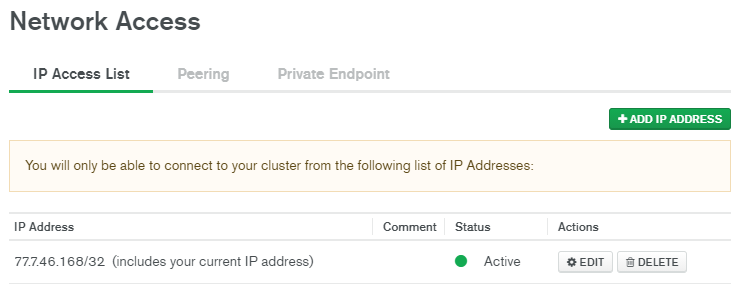
Enable Network Access.
The database is not accessible from outside unless you enable network access. You can simply add the 'Currently connected IP' to the allowed hosts.
In the console dashboard we can see now our created cluster.
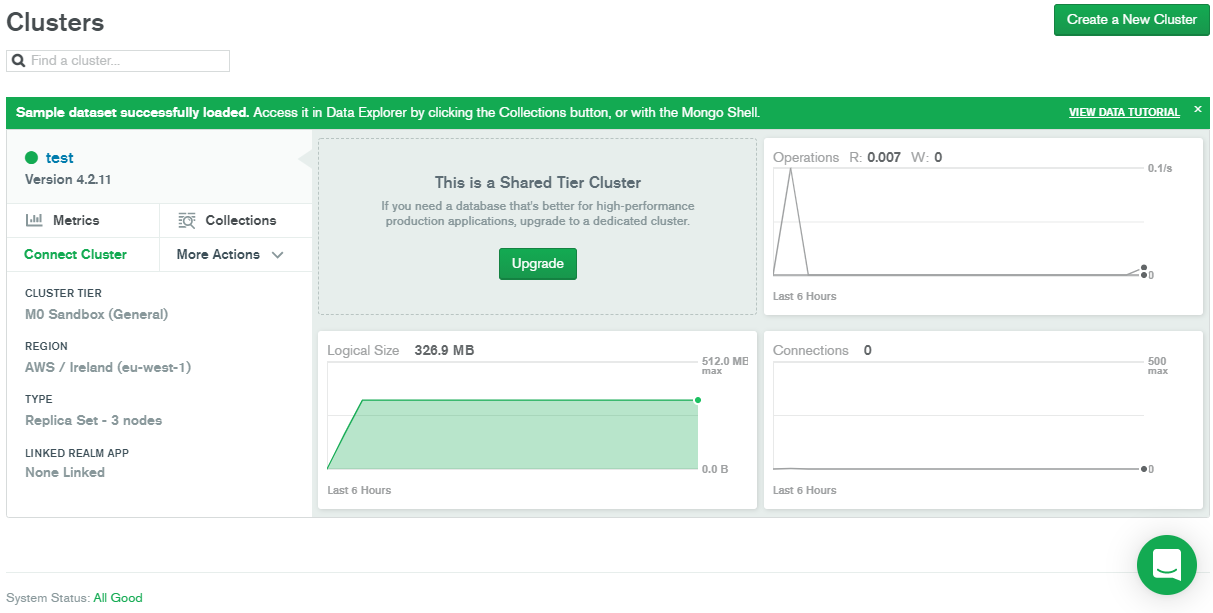
Load Sample Data
Sample data can be loaded by clicking the collection link in the dashboard. There you can choose to load the sample data.
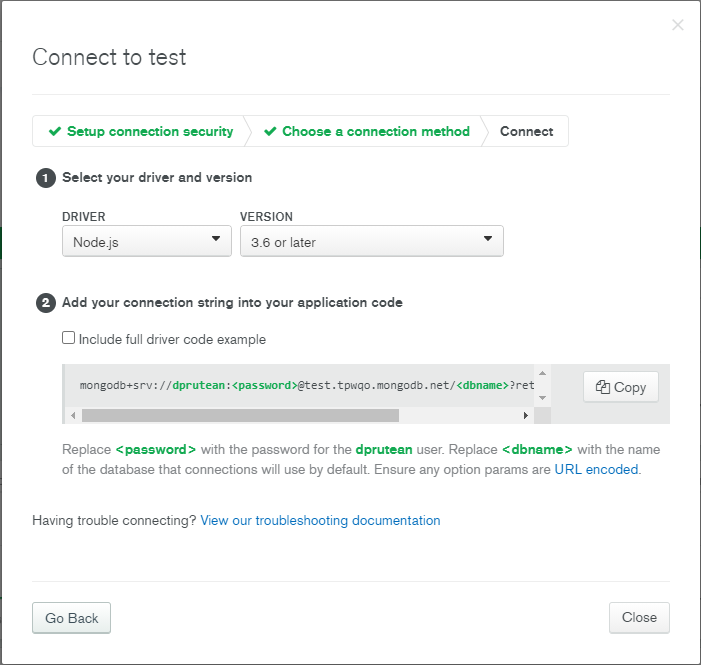
Get the Connection URL
Choose 'Java' as the preferred programming language and click 'Connect cluster' to copy the connection URL.
Download and install DbSchema
DbSchema is a free database designer available at DbSchema.com.
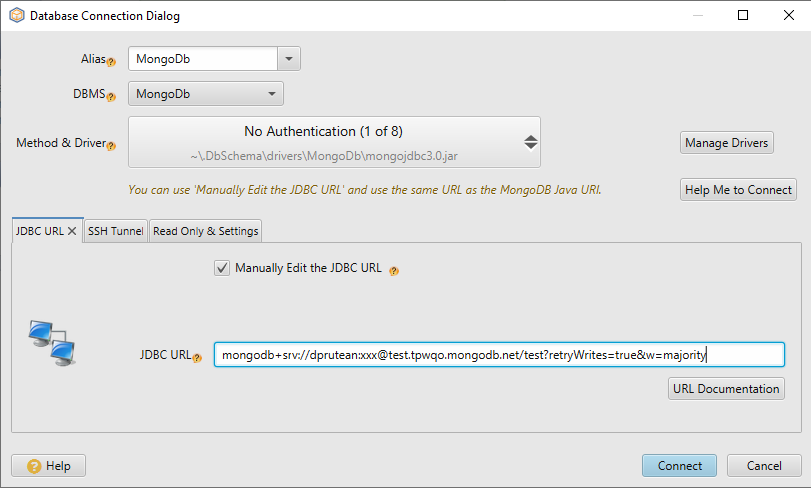
Choose to start a new project connected to the database. The Connection Dialog will show up. Choose 'Manual URL configuration' and paste the JDBC URL here.
MongoDB Diagrams
You will be asked to select the databases to work with. Select all databases, and in the next step the diagrams will be visible.