Amazon DynamoDB with DbSchema: Reverse-Engineer, Design, and Explore Your Tables
For the developer or platform engineer who runs DynamoDB tables in more than one environment and wants the structure in a file that can be reviewed, versioned and deployed.
On this page
A DynamoDB deployment usually spans three environments: DynamoDB Local on a developer's machine, staging, and production. Nothing in DynamoDB holds the structure those three are supposed to share, because a table declares its primary key and leaves the rest to the items. DbSchema connects to each environment, reads the table and index structure, and writes it into a design model file you keep in Git and compare against any of them.
What DbSchema reads from a DynamoDB table
Create a connection with the DynamoDB JDBC driver, which DbSchema downloads for you and whose source is on GitHub. The host is the regional endpoint, the user field takes the AWS access key id and the password field takes the secret, or jdbc:dynamodb://localhost:8000 reaches DynamoDB Local. Reverse-engineering then reads what DynamoDB does define: the partition key, the sort key where there is one, and the Global and Local Secondary Indexes around them.
The attributes come from the items rather than from a definition. DbSchema reads items from each table and builds the attribute list out of the names and types it finds, so the result is what the data actually looks like, not what the key schema says. Two items in one table can carry different attributes, and the model shows the union of them. Everything so far is read-only against AWS: the diagram and the attribute list are written into the design model, and no statement goes back to the tables.
The design model file and what it holds

The model is saved as a .dbs project file in XML, and it holds the whole design: tables, attributes, indexes, virtual relationships, diagram layouts and any comment you typed against a table or attribute. It opens in a text editor, and it opens in DbSchema with no connection at all.
That last part is what makes the file worth keeping. A developer who joins the team reviews the data model without AWS credentials, because opening the file draws the same diagram. Design work happens the same way: switch to disconnected mode, add tables and attributes to the model, and decide later what reaches DynamoDB. Saving the model to a file is a Pro Edition feature; connecting, reverse-engineering and the diagram are in the free Community Edition.
Version the model in Git
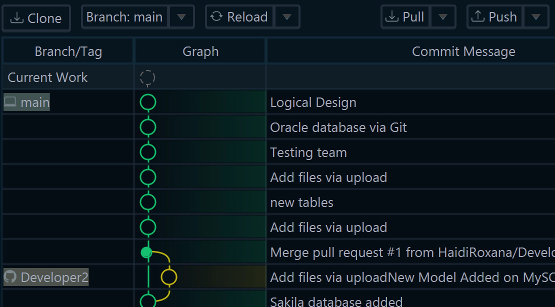

XML diffs and merges the way source code does, so the .dbs file belongs in the repository next to the application. Choose Git — Collaborative Design from the Model menu and the Git dialog opens, where you clone a repository into an empty folder; Stage, Commit and Push publish your changes, and Pull brings in what a colleague pushed. Open the pulled file and the diagram redraws.
A schema change then travels the path a code change travels: a branch for an access-pattern experiment, a diff in the pull request, a merge or a revert. None of it reaches AWS. The tables change only when someone runs the synchronization described next, which is a useful separation when the review and the deployment belong to different people. The Git workflow needs the saved model file, so it needs the Pro Edition.
One model against local, staging and production

Schema → Compare Model with Database connects to whichever DynamoDB endpoint the connection points at and lists the differences between it and the model, object by object. Tables and indexes that exist on one side and not the other show up here, which is where a staging table missing a global secondary index that production relies on becomes visible before an application notices.
Schema → Synchronize Model with Database then opens the Sync Dialog and generates the statements for exactly the differences you approved. Read them, edit them if you want, and click Execute. That is the moment the environment changes, and it is the only step in this article that writes structure to DynamoDB. Provisioning a fresh DynamoDB Local instance for a new developer or a CI job is the same run against a different connection. Schema synchronization is a Pro Edition feature.
Virtual foreign keys between DynamoDB tables
DynamoDB enforces no referential integrity and has no foreign keys, yet the relationships are there in the application. A small shop schema makes the point:
Users       partition UserId
Orders      partition OrderId, attribute UserId
OrderItems  partition OrderId, sort ProductId
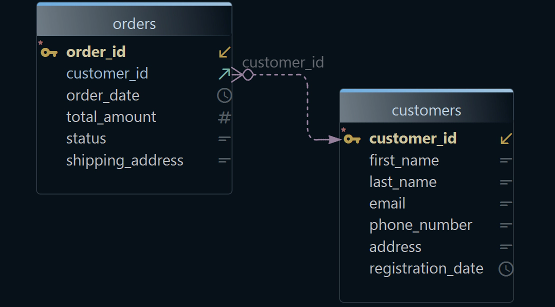
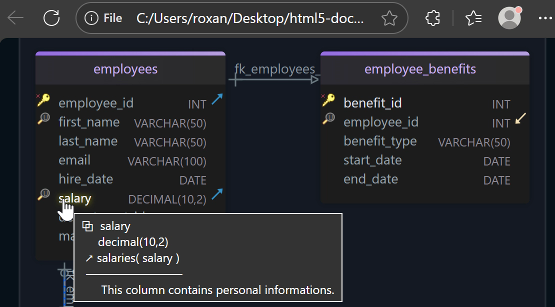

Orders.UserId holds the key of a user and OrderItems.OrderId holds the key of an order, and DynamoDB knows neither fact. Drag one attribute onto the other in the diagram and DbSchema records the link as a virtual foreign key: a connector line drawn between the two tables, saved in the .dbs file, and never sent to the database. The step-by-step version, with the drag handles and the dialog that asks which kind of key to create, is in the DynamoDB design walkthrough.
Drawing them buys more than a readable picture. The Relational Data Editor, the Query Builder and the Data Generator all treat a virtual foreign key the way they treat a declared one, which is what the next three sections rest on.
Browse items in the Relational Data Editor

Right-click a table header in the diagram and choose Open in Relational Data Editor. The table opens as a grid you filter and sort, and nested attributes expand into further columns, so an item is readable without reading raw JSON.
The foreign key button on the table header panel adds a child table as a second pane. Click an order in the parent pane and the pane below refilters to that order's items, cascading as many levels deep as the virtual relations go. Tracing a customer through several tables that way replaces a series of separate queries and a switch between the AWS console and a shell. Edits in the grid go to DynamoDB, not to the model file. Relational data browse is a Pro Edition feature.
Build a query without writing PartiQL
DynamoDB accepts PartiQL, a SQL-compatible query language for selecting, inserting, updating and deleting data, and DbSchema gives you two ways to use it. Type the statement in the SQL editor and it goes to DynamoDB through the JDBC driver, with the rows coming back in the result pane.

Or build it with the mouse. Click a table header in the diagram to open the Query Builder with that table loaded, tick the attributes you want in the result, and right-click an attribute to add a filter condition. Following a virtual foreign key pulls in the related table with its join, and the generated query updates live at the bottom of the builder, so the builder also shows you the syntax for the query you were about to look up. The Query Builder is a Pro Edition feature; the SQL editor is in Community.
Test data that references real keys

A new table structure is hard to judge empty. Open the Data Generator from Data Tools → Generate Random Data, set a row count per table, and give each attribute a pattern: a date range for a timestamp, a name or an email for a string, a numeric range, or a Groovy script where none of the built-in patterns fit.
Two settings keep the generated set coherent. Reorder the tables in the dialog so a referenced table is filled before the table that points at it, and give the referencing attribute the load_values_from_pk pattern, which draws its values from the keys already in the parent table. Orders.UserId then holds a user id that exists, and the dataset is usable for an integration test without repairing references by hand. The generator writes rows to DynamoDB, so aim it at DynamoDB Local or a development table. The Data Generator is a Pro Edition feature.
Start with one of your own tables
Download DbSchema at https://dbschema.com/download.html, create a connection with your access key, secret and region, or point it at jdbc:dynamodb://localhost:8000 for DynamoDB Local, and let it draw the tables you already have. Connecting, reverse-engineering, the interactive diagram and the SQL editor are in the free Community Edition. The saved model file that Git versions, schema synchronization, the Relational Data Editor, the Query Builder and the Data Generator are in the Pro Edition.