Download MSSql JDBC Driver
What Is a JDBC Driver?
A JDBC driver is a Java library file (.jar) that enables Java applications — including DbSchema — to communicate with a database over a standard API. The driver translates generic JDBC calls into the network protocol understood by MSSql, so you never have to write low-level socket code. Drivers are typically distributed by the database vendor or as open-source projects.
Understanding the JDBC URL
Every JDBC driver identifies the target database through a connection URL. The URL encodes the hostname, port, database name, and any driver-specific parameters as a single string. The exact syntax varies per driver — the details for MSSql are listed in the section below.
Download the MSSql JDBC Driver
Microsoft SQL Server is a leading enterprise RDBMS available both on-premises and as Azure SQL Database in the cloud. It supports T-SQL, CLR integration, Always On availability groups, and deep integration with the Microsoft ecosystem.
DbSchema can connect to Azure Cloud database! Just connect using host 'servername.database.windows.net', port 1433 and configured user and password.
We support all versions of SqlServer including SqlServer 2014, under the name 'SqlServer'. For SqlServer 2000-2005 we have created a different entry in DbSchema because of compatibility problems with the versions after.
SQL Server JDBC Driver Details
- Required File(s): sqlserver.jar
- Java Driver Class: com.microsoft.jdbc.sqlserver.SQLServerDriver
- JDBC URL: jdbc:sqlserver://HOST:PORT;databaseName=DB
- Website: Microsoft
jTDS JDBC Driver
Download the jtds-nn-dist.zip file, unzip it and then load the jtds.jar file- Required File(s): jtds-1.2.2.jar
- Java Driver Class: net.sourceforge.jtds.jdbc.Driver
- JDBC URL: jdbc:jtds:sqlserver://HOST[:PORT][/DB];user=USER;password=PASSWORD[;instance=PARAM] or jdbc:jtds:sqlserver://HOST[:PORT][/DB];domain=PARAM;integratedSecurity=true
- Website: jTDS web site
The driver archive is a zip file. Extract it and load the .jar files using DbSchema's Driver Manager.
How to Enable TCP/IP Connection and Set The Port
SqlServer TCP/IP connections are not enabled by default. You won't be able to connect to the database unless you enable them.In the SQLServer Configuration Manager go to Protocols and enable TCP/IP
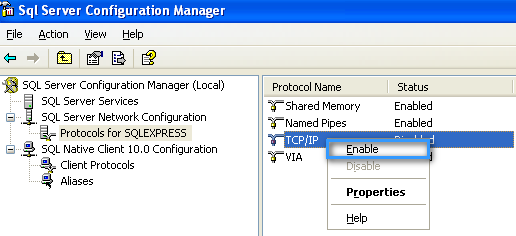
Click on the protocols for SqlExpress, right-click on the TCP/IP and choose Properties.
Go to the IP Addresses tab, scroll to the bottom and
you'll find the option IP All enter the desired port by default it should be 1433. 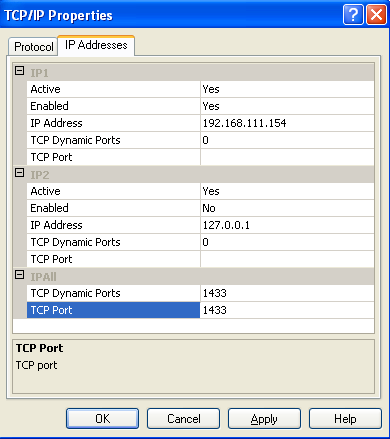
Enable Database Authentication (Mixed Mode)
By default only the Windows Authentication is enabled. This will allow login on the database only using the COMPUTER_DOMAIN/WINDOWS_USER and not using the 'sa' user. Read the chapter about how to install SqlServer for details.To be able to connect to the database using the 'sa' user or other database user, the mixed authentication mode should be enabled.
Take this steps to enable mixed mode authentication:
First, login to your server. Click on Start > Programs > Microsoft SQL Server Select "SQL Server Management Studio Express" / "SQL Server Management Studio", depending on your version of SQL Server.
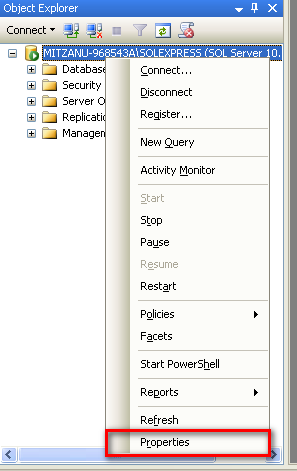
Right click the server name and select "Properties". Click "Security".
A dialog will open. Under "Server authentication" select "SQL Server and Windows Authentication Mode".
Right click the server name and select "Restart". Wait a few moments for the service to restart before proceeding.
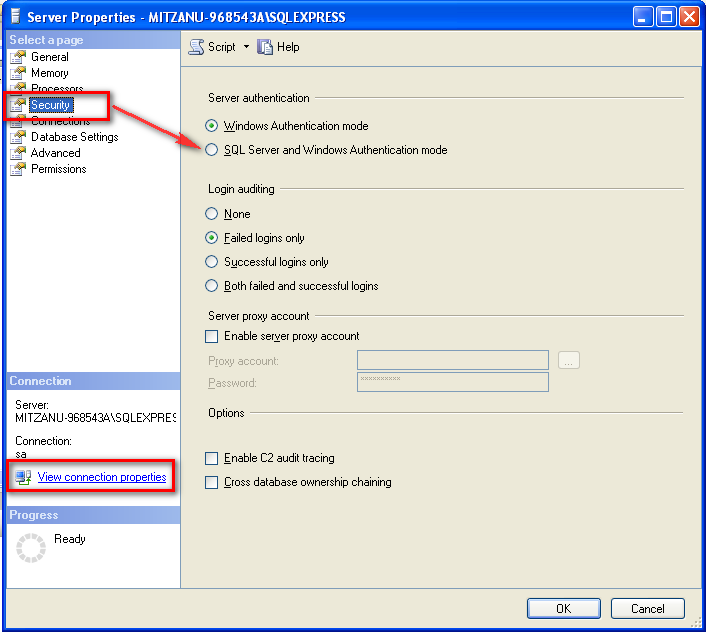
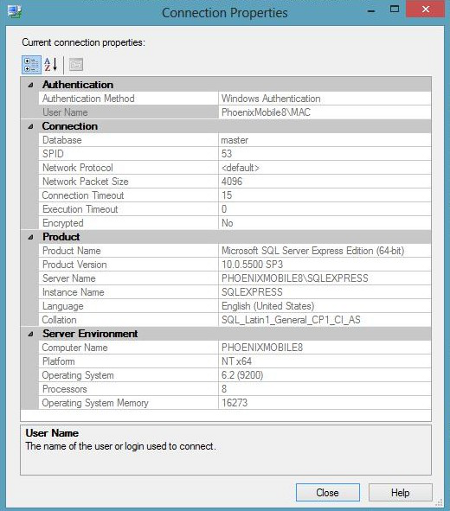
To review the current configured authentication method, from the previous dialog 'Server Properties'
choose the 'View Connection Properties' in the bottom. In the Properties Dialog the configured authentication will
show up.
Debug Connectivity Issues
- Check Network:
Make sure the Network is workable and stable when you connect to SQL Server on a remote machine. You can test the Network connection using the PING grogram: ping <Server Name> - Enable remote connections for SQL Server:
a) In SQL Server Configuration Manager, expand SQL Server Network Configuration, and then click Protocols for.
b) In the details pane, right-click one of the available protocols, and then click Properties.
c) To enable the TCP/IP protocol (or named pipes) for remote connections, set the Enabled box to Yes.
- Enable the SQL Server Browser service:
If you connect to a named instance, make sure the SQL Server Browser service by using SQL Server Configuration Manager is enable or specify the TCP port when connecting to it.- Create an exception for SQL Server in Windows Firewall:
If firewall is enabled on the server, you need to put TCP port number of the instance, such as 1433 for the default instance. Then add UDP 1434 for SQL Server Browser Service. - Enable the SQL Server Browser service:
- Check the server name you used.
For a named instance, you need to type computer name\instance name. For a default server, you only need to type computer name. For server Configuration, please use netstat command. Run "netstat -an"command in DOS windows. The "netstat-an" command output in the removal of the part of the SQL Server port number as following: Active Connections Proto Local Address Foreign Address State TCP 0.0.0.0:1433 0.0.0.0:0 LISTENING TCP 169.254.173.244:1433 169.254.173.244:3952 ESTABLISHED - Client TCP/IP configuration
In most cases you do not need to configure the client, because the TCP / IP protocol is enabled by default. You can use the Client Network Utility (or SQL Server Configuration Manger) to configure TCP / IP protocol. Run cliconfg.exe or from Start -> Programs -> Microsoft SQL Server -> Client Network Utility can be transferred out - Verify that SQL Server is actually listening for TCP / IP protocol
In order to verify that SQL Server does monitor the TCP / IP protocol, but also need to see the SQL Server errorlog file. If you find that SQL Server does not listen for TCP / IP protocol, use the server-side network configuration tool (run svrnetcn.exe ) to confirm whether the configured SQL Server monitor TCP / IP protocol. - Check the network connectivity.
To ensure that only the server can ping the IP address of SQL Server, SQL Server can ping the server name. If you ping the server name in question, indicating the DNS or WINS server configuration problem, you can in your HOSTS file (HOSTS file in the system32 \ drivers \ etc directory) and manually add server IP address as follows: 169.254.173.244 MySQLserver If you have a problem with ping IP address, then check the configuration of the network including hardware connections. On the server and client are using "ipconfig / all" command to check the server and client are on the same network. - Use the TELNET command to check the SQL listening port.
To verify that SQL Server listening port, you can use the TELNET command. Assume that SQL Server's IP address is 192.168.1.1, port 1234, you can run the following command: TELNET 192.168.1.1 1234 If the TELNET successful, then the result will be a only a black screen with cursor in flash. If unsuccessful, then you will get an error message. These error messages need to continue troubleshooting the issue. From the remote machine can you telnet to SQL server on the port SQL server is running. On remote machine, open command prompt and type: telnetSQLServerHostName is either IP address or hostname of the remote computer where SQL serve is running PortNumber is port number SQL server is listening for default instance it is 1433 but check SQL server configuration manager to make sure. - Check the SQL Server login user access.
- You can try to specify protocol and port to connect SQL Server in the Query Analyzer as below:
TCP:MySQLServer,1433 Through this method can force the specified query analyzer using the TCP / IP connection to the server specified port.- If it does not work for you, please try to use Network Monitor to capture trace to analysis.
For more information about Network Monitor, please refer to this article - Check the SQL Server login user access.
- TCP/IP port numbers required to communicate to SQL over a firewall: http://support.microsoft.com/?id=287932
- How to Troubleshoot Basic TCP/IP Problems: http://support.microsoft.com/kb/169790
DbSchema and SQL Server
DbSchema supports SQL Server schemas, including linked server objects and computed columns. The Git integration lets teams version their SQL Server schema alongside application code, making rollbacks and branch-based deployments reliable.
Have connection issues? Contact the DbSchema team for help.
Explore MSSql Visually with DbSchema
Once the JDBC driver is configured, DbSchema connects to your MSSql database and gives you a full graphical workbench — no command-line required. Available as a free Community Edition and a full-featured PRO Edition. No registration needed to get started.

Interactive ER Diagrams
Reverse-engineer your MSSql schema into a drag-and-drop ER diagram. Arrange tables visually, add new columns, define foreign keys, and let DbSchema generate the DDL — all without writing SQL by hand.
Visual Query Builder
Compose MSSql queries by clicking on tables and columns — no SQL knowledge required. Add joins, filters, groupings, and aggregations through a point-and-click interface, then copy the generated SQL or run it directly against the live database.

Relational Data Explorer
Browse MSSql table data and follow foreign key relationships across tables in a single view. Edit cells inline, filter rows, and paginate through large datasets — all without leaving the explorer.

Schema Synchronization
Compare your MSSql schema across development, staging, and production environments. DbSchema generates the exact ALTER statements needed to close the gap and lets you review every change before executing — reducing the risk of unintended schema drift.

SQL Editor
Write and execute MSSql queries in the integrated SQL editor with schema-aware autocomplete, syntax highlighting, and instant result display. Run scripts, inspect execution plans, and export results to CSV or JSON from a single interface.

HTML Schema Documentation
Generate a static HTML site documenting every table, column, type, index, and relationship in your MSSql schema. Share it with your team or embed it in your project wiki — no extra tooling required.

For the full feature list and edition comparison, visit the DbSchema PRO Edition page.